About:
The Price Table Method is used when you wish to be able to update your inventory pricing based on a price matrix.
How To Set Up A Price Table:
1.) Click on Views > Administration & Utilities
2.) Pricing > Table Pricing Add/Edit/Delete
3.) Select the Update Tables radio selection and click the Add Table button to add a new Table Code
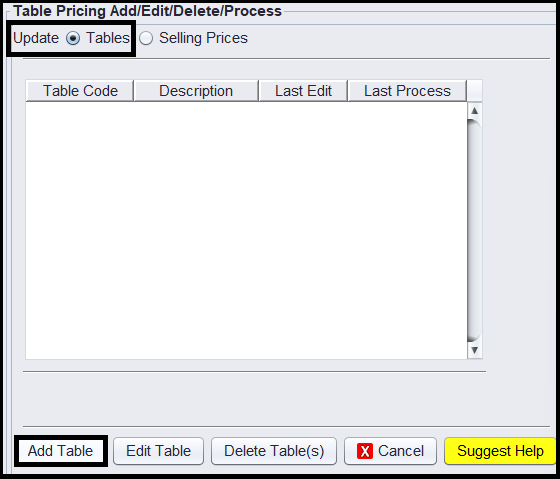
Note: To EDIT an existing table, highlight the table you wish to edit and click the ‘Edit Table’ button
4.) Enter a TWO Digit/Character Code for the Table you’re creating
5.) Enter a Description for the Table Code you’re creating
6.) Select the first Price Code 1 to add a matrix
7.) Select your Cost Basis (i.e., Average Cost, Last Receipt Cost, Dealer Base As COST, Dealer Base As PRICE or Disable This Price to deactivate)
8.) Once you select your cost basis, the table fields will open for editing
9.) Enter your From Cost, To Cost and the Factor you wish to use (i.e., Straight Markup, Gross Profit Markup or Dollar Markup)
10.) If necessary, enter a Round To, Min. Profit or Max. Profit
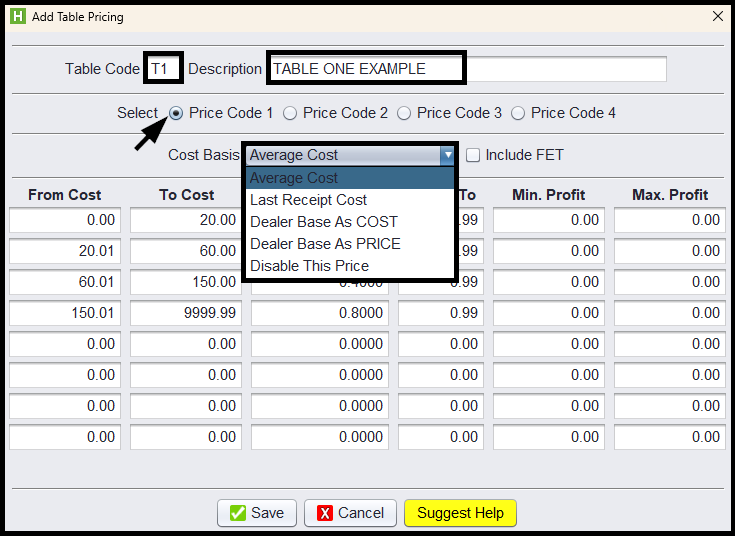
11.) Repeat Steps #6 through #10 for Price Levels 2, 3 and 4 – as needed
12.) Click Save
To Assign A Specific Table Code To An Inventory Item:
1.) Click Views > Administration & Utilities
2.) Click Inventory > Inventory Add/Edit/Delete
3.) On the Inventory Add/Edit/Delete screen, key in the Product# of the item you wish to edit and press <ENTER> or use the binoculars to lookup the item
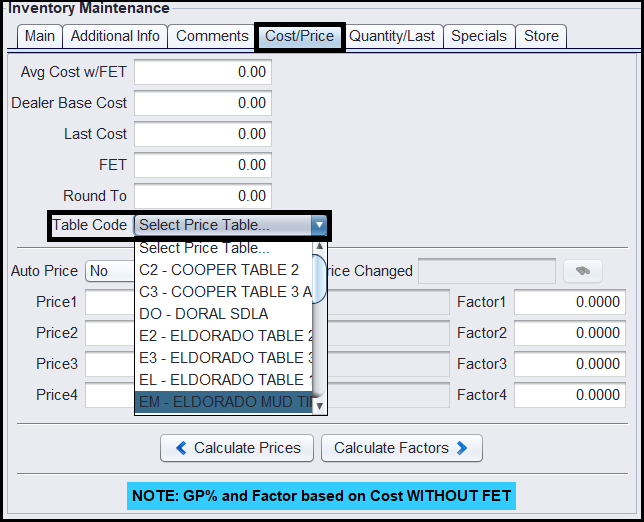
4.) Click on the Cost/Price tab
5.) On the Cost/Price tab, select the Table Code you wish to assign to this item from the drop-down menu
6.) Click Save before exiting this screen
Note: If you have a lot of items to assign a table code, reach out to HITS Technical Support for further assistance.
Update Selling Prices Using Table Pricing:
1.) Click Views > Administration & Utilities
2.) Pricing > Table Pricing Add/Edit/Delete
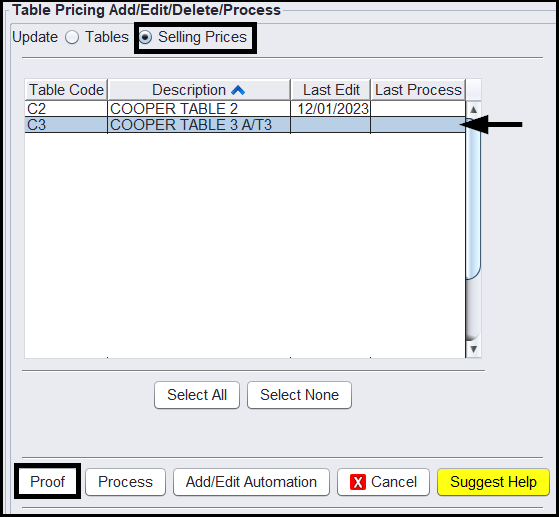
3.) Select the Selling Prices radio selector
4.) Click on the Table Code you wish to Update Prices
5.) Click the Proof button to review the price updates – compare old price to new price
6.) If everything looks correct, exit out of this window and click the Process button