
Below are a few reports that HITS recommends to customers who inquire on End Of Year (EOY) reporting:
Inventory Value (As Of Date):
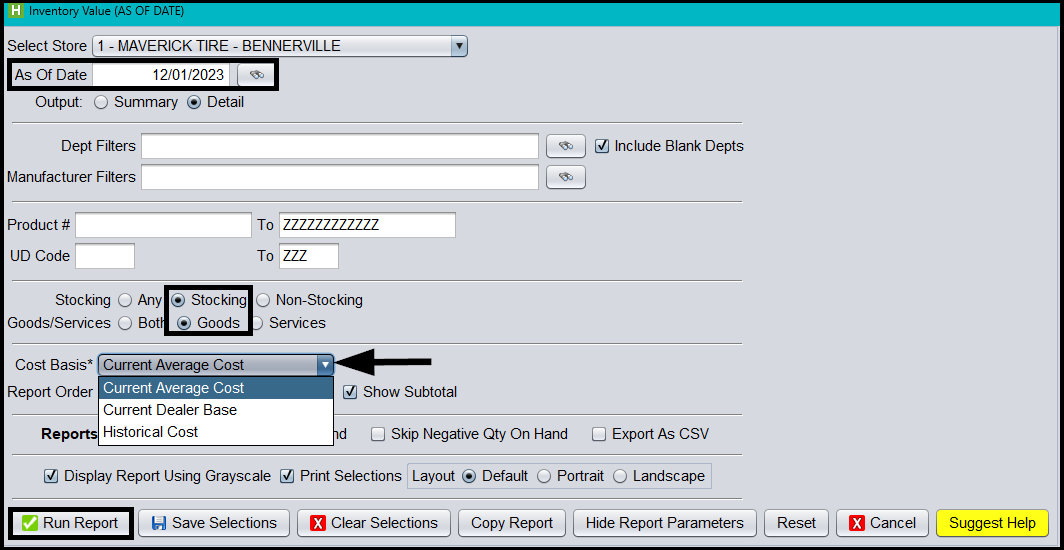
The HITS Inventory Value Report will allow a user to enter any “As Of Date” to extract their inventory value based on that specific date. Instructions to run this are as follows:
1.) Click Views –> Reports
2.) Inventory –> Inventory Value (As Of Date)
3.) Enter the date you wish to run the report for (we suggest selecting Stocking Goods Only & Uncheck “Skip Negative Quantity On Hand”)
4.) If using a prior date to the current day, a user may want to change the Cost Basis from Current Average Cost to “Historical Cost”
5.) Click Run Report
A/R Value Report:
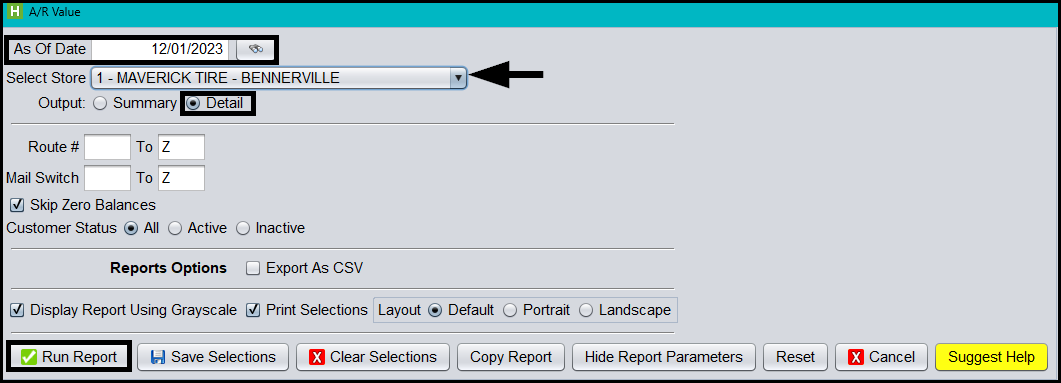
The HITS A/R Value Report will allow a user to enter any “As Of Date” to extract your A/R Value by customer as of that specific date. To run this report in HITS:
1. Click Views –> Reports
2.) A/R –>A/R Value (As Of Date)
3.) Enter the As Of Date you wish to use
4.) Select the appropriate store or “All Stores” if applicable
5.) Click the Detail radio selection to see individual customer balances
6.) Make any additional selects that you wish to limit the data being extracted
7.) Click Run Report
Note: This report exports as a CSV
A/R Aging & Delinquency Report:
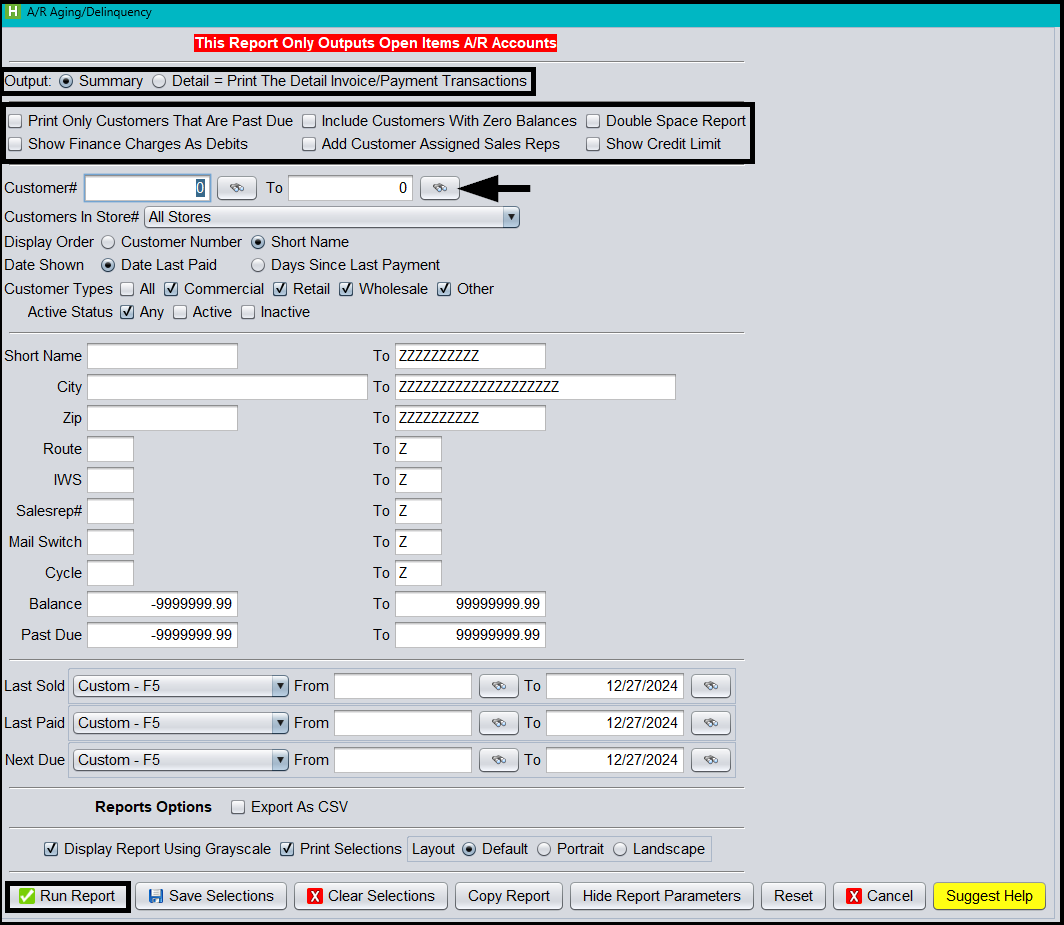
HITS provides an A/R Aging & Delinquency report in case users want a print off of where customers stand with their current A/R balances. To run this report in HITS:
1.) Click Views –> Reports
2.) Click A/R –> A/R Aging/Delinquency Report
3.) A user can click Run Report -OR- make specific selections regarding: Detail Invoice/Payment Transactions, run for specific customer, Only printing past due customers, etc.
Store Recaps:
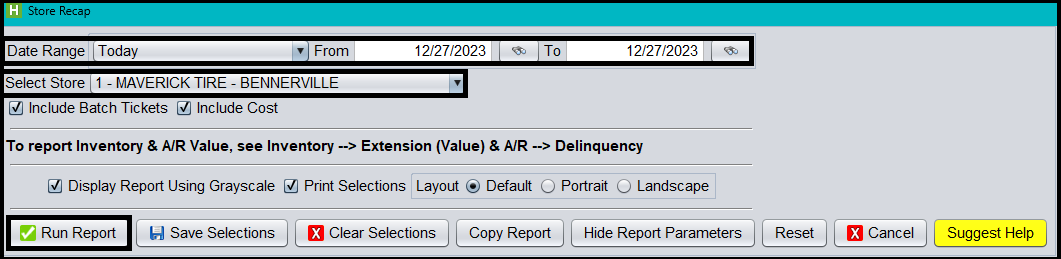
For users to see an entire overview including Sales Summaries, Register Summaries, A/R Activity as well as Inventory Recaps they can run the Store Recaps report. Do run this report in HITS:
1.) Click Views –> Reports
2.) Recaps & Summaries –> Store Recaps
3.) Select a Date Range
4.) Select the appropriate Store
5.) Click Run Report
Department Recap:
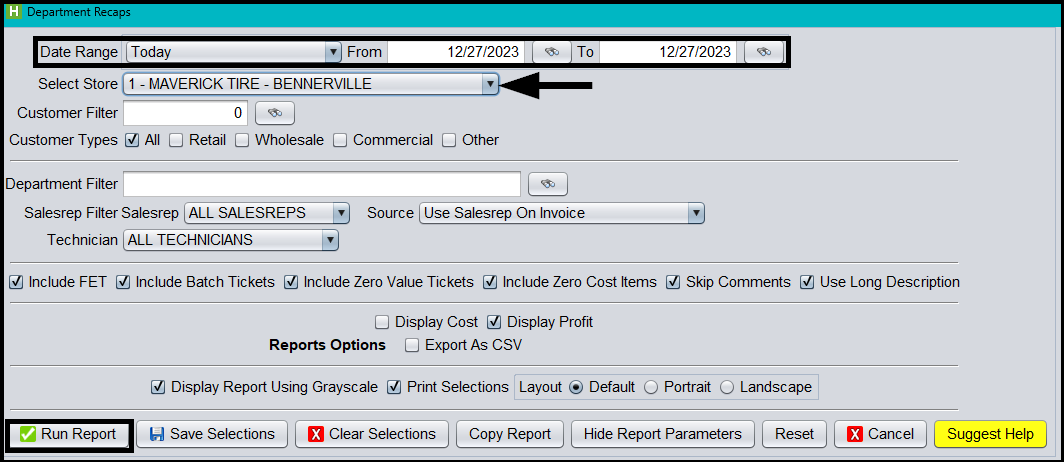
Some customers may want to run a report specifically for department sales. Users can run the Department Recap for the year in HITS:
1. Click Views –> Reports
2.) Recaps & Summaries –> Department Recaps
3.) Select a Date Range (i.e., This Year)
4.) Select the appropriate store, if applicable
5.) Click Run Report
Sales Tax Journal:
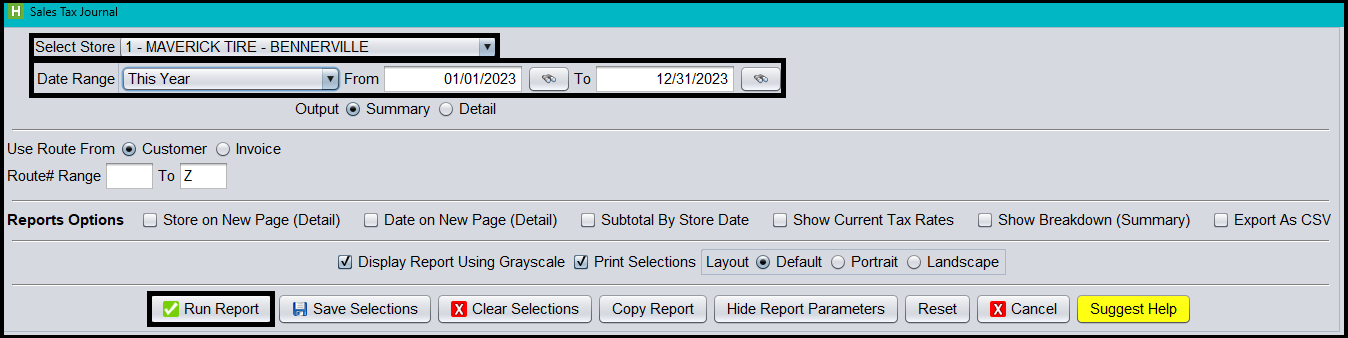
HITS also has a Sales Tax Journal that users can run to get their yearly sales tax totals that were collected. To run this in HITS:
1.) Click Views –> Reports
2.) Click Journals –> Sales Tax Journal
3.) Select the appropriate Store or All Stores if applicable
4.) Select the Date Range
5.) Click –> Run Report
Count Sheets:
Some customers may be completing an EOY count for their stocking inventory. HITS has the Count Sheets report which exports to CSV for a user to enter ‘actual quantities’ and then import the saved spreadsheet into a HITS Receipt. To run this report in HITS:
1.) Click Views –> Reports
2.) Inventory –> Count Sheets
3.) Select the appropriate store
4.) Select Goods
5.) Select Stocking
6.) Users can edit the “Sort By” drop-down menus depending on how their business completes inventory counts
7.) Select the appropriate Include Items checkbox (i.e., Positive, negative, zero, ALL)
8.) User can either include or not include In Process tickets (i.e., WIP, RIP, TIP, OIP)
9.) If exporting to a CSV, ensure to check the Export as CSV checkbox
10.) Click Run Report
