
To ensure customers receive timely appointment confirmations and reminders, all appointment details must be properly entered and saved in the system. This includes setting the appointment as active, selecting a notification method, and ensuring the correct contact information is in place. Proper setup helps maintain clear communication and reduce missed appointments.
First, make sure there is an appointment set for the customer within the open ticket.
From the open ticket go to the Appointments/Status tab.
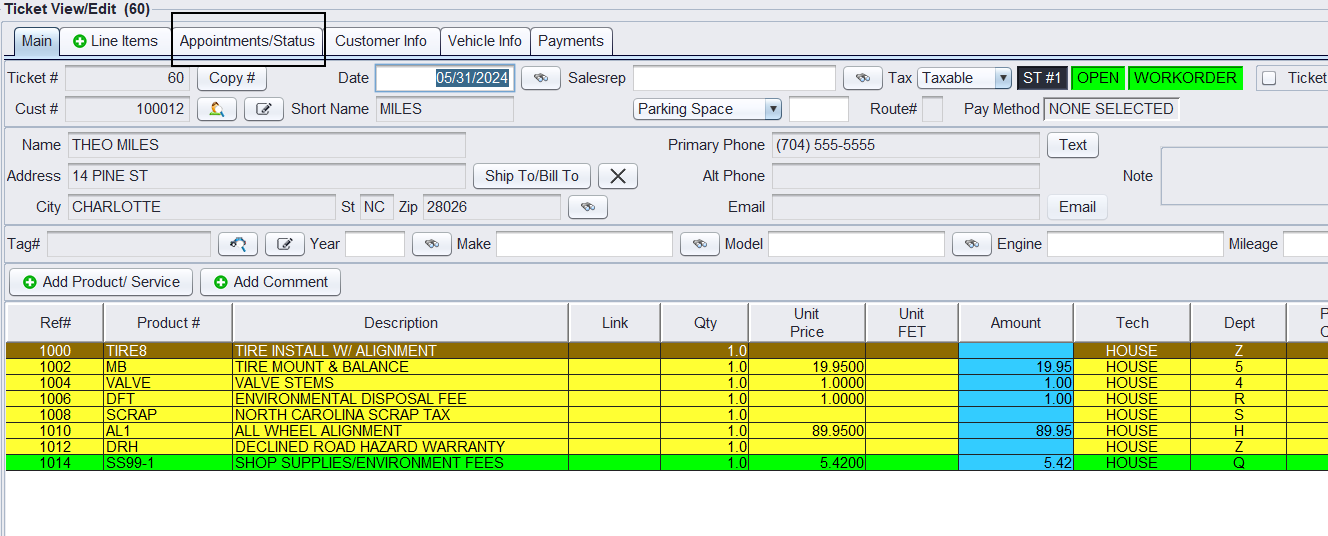
All of the fields below should be filled out and then selections must be SAVED by clicking on the “Save” or “Save & Exit” button:

1.) *Check the Appointment Active checkbox (required)
2.) *Enter/Select an Appointment Date & time (required)
3.) Select the appropriate Bay and Code (optional)
4.) Select the Appointment Confirmed drop-down selection from Confirmation drop-down menu
5.) Notified mode on of the following must be selected or set in View/Edit Default Settings > Email/Communications > Store > Make necessary changes: Text, Email, OR Email & Text
-
-
- For the selected notified mode there MUST be an associated contact enter for that method as a primary contact
-
If the contact needs to be edited or added for the customer please select the search/binocular button as shown below.
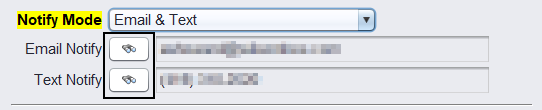
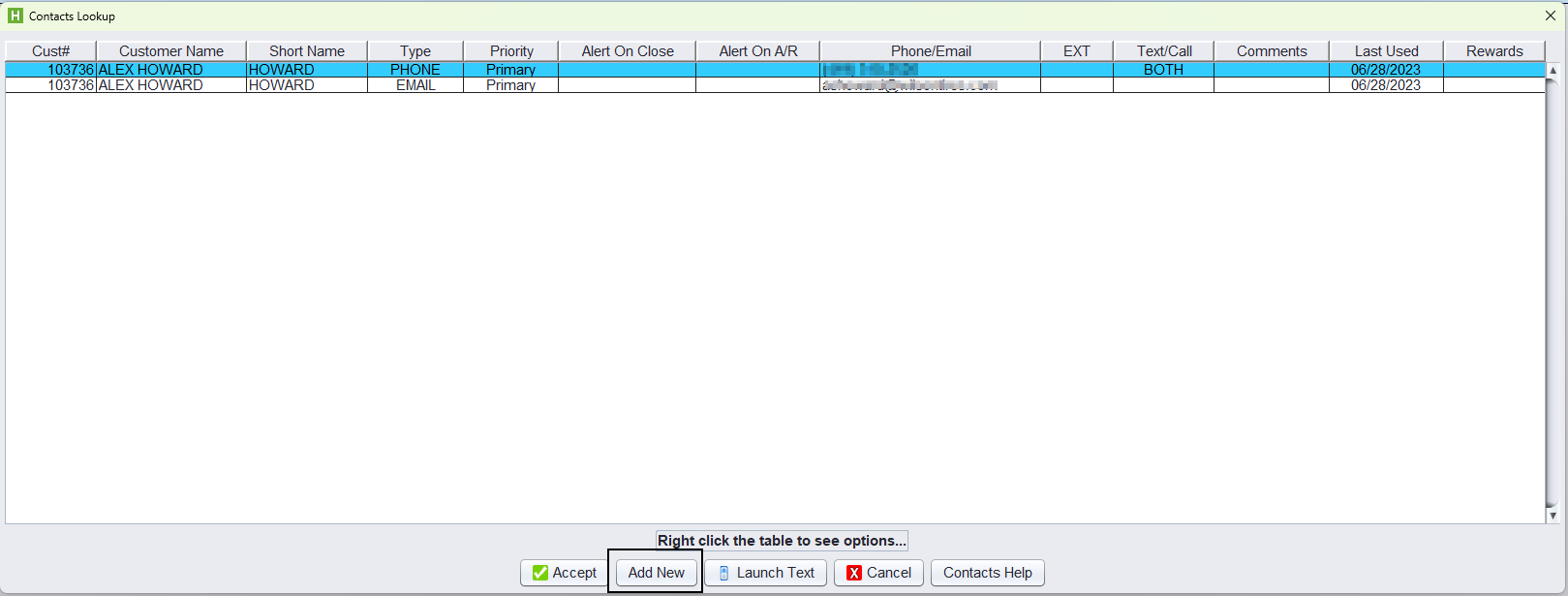
This will open a window where the customer’s contact details can be edited or added.
Right-click on an existing record –> Edit to edit an existing contact OR click the Add New button near the bottom of the window.
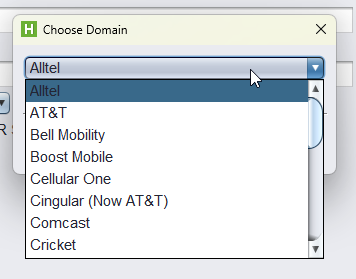
Important! For text reminders to be sent the customer’s carrier must be entered in the Text Domain field within the contact (see below)
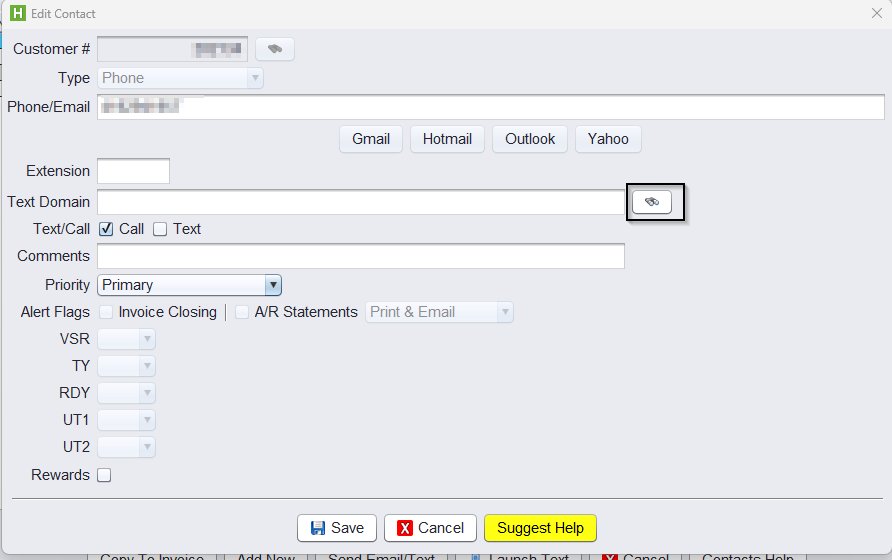
Choose the customer’s carrier, click OK. SAVE
Once all selections are saved on the Appointments/Status Tab the first notification will be sent to the customer regarding their appointment. The standard reminders are:
1.) Initial – sent at the time of appointment being entered > Appointment Confirmed is selected and saved
2.) 24 hours before the appointment time
3.) 1 hour before the appointment time