
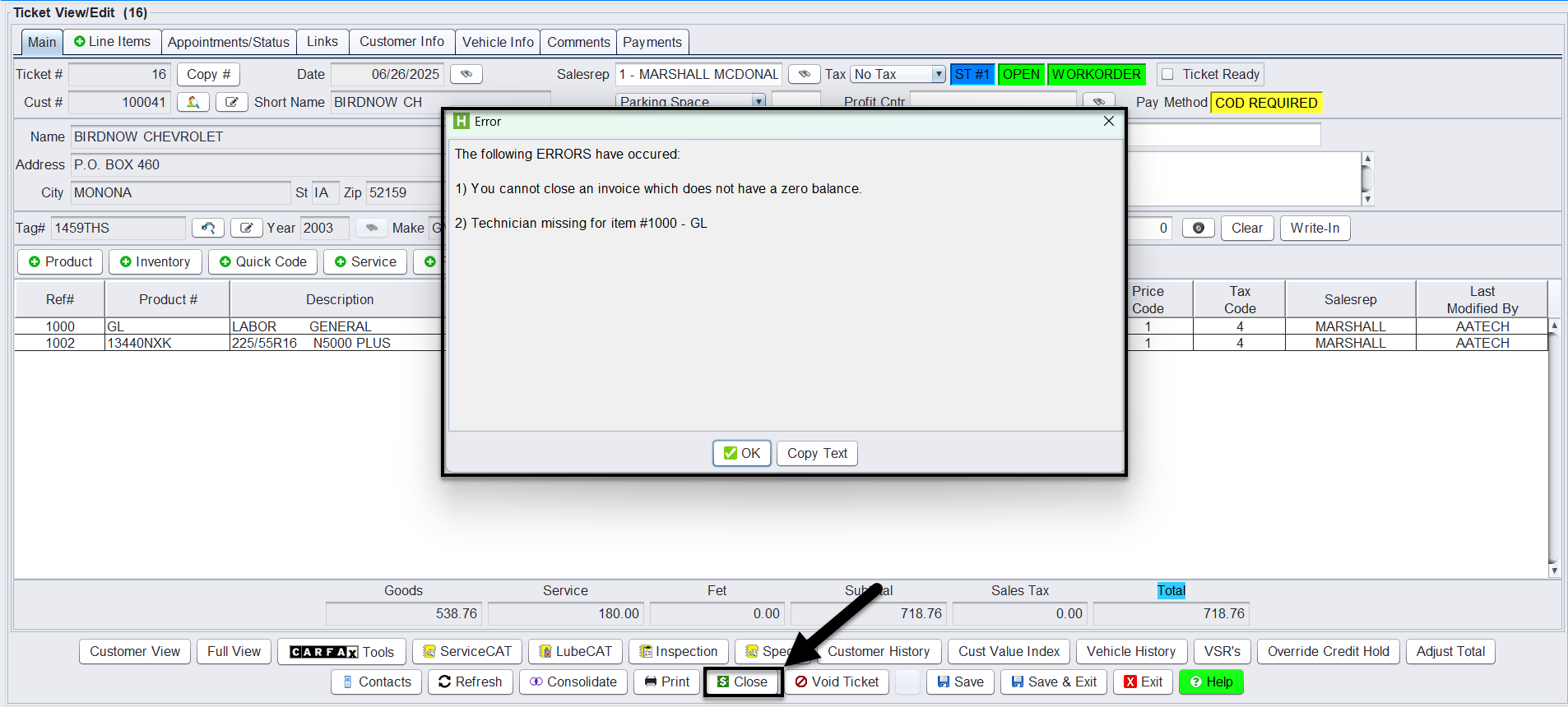
In HITS®, clicking the Close button at any point in the ticket process triggers a real-time requirement check. This helps service writers identify any missing or incomplete items that prevent a ticket from being finalized.
🧩 How It Works
- The Close button acts as a pre-check tool, not just a finalization trigger.
- When clicked, HITS® checks for required fields based on store or customer level configurations.
- A pop-up will display if any critical items are missing or invalid.
- Once the required items are completed, the technician can mark the Ticket Ready.
- Once the ticket is marked ready, the sales counter can close the ticket with payment.

⚠️ Common Ticket Close Requirements
You may see one or more of these warnings when attempting to close a ticket:
| Warning Message | Trigger Condition |
|---|---|
| Credit Limit Reached | A/R customer has exceeded their credit limit |
| DOT Required | Tires on the ticket require DOT entry, but fields are empty |
| No Technician Assigned | Technician not assigned to labor or ticket header (if required) |
| Zero Quantity/Price | Part or labor line has zero quantity or price |
✅ Technician Workflow Best Practice
To streamline ticket finalization:
1.) Technician completes all work and required fields.
2.) Technician marks the ticket as “Ready.”
3.) Sales counter sees this and can confidently collect payment and finalize the ticket.
🛠️ Store Settings Influence Validation
Ticket validations are tied to your store’s default settings. Some of the most common configuration options that affect the close process include:
- Require Vehicle
- Require Technician
- Require DOT entry
- Require Payment before Close
Admins can manage these under Store → View/Edit Default Settings.
👤 Customer-Level Settings
Customer-specific configurations can also influence close behavior, especially for:
- A/R Terms (e.g., net terms, credit limits)
- Credit Limit Enforcement
- Invoice required fields for commercial accounts
- Pricing method, which may trigger errors if set incorrectly
For example:
-
A Credit Limit Reached warning will only occur if the customer has a defined credit limit and their balance exceeds it.
⚙️ Close requirements are enforced at both the Store and Customer levels.
Store settings determine global validation rules (e.g., require DOTs or Techs), while customer-specific rules (e.g., credit limits or A/R terms) may also trigger validation during the Close process.