
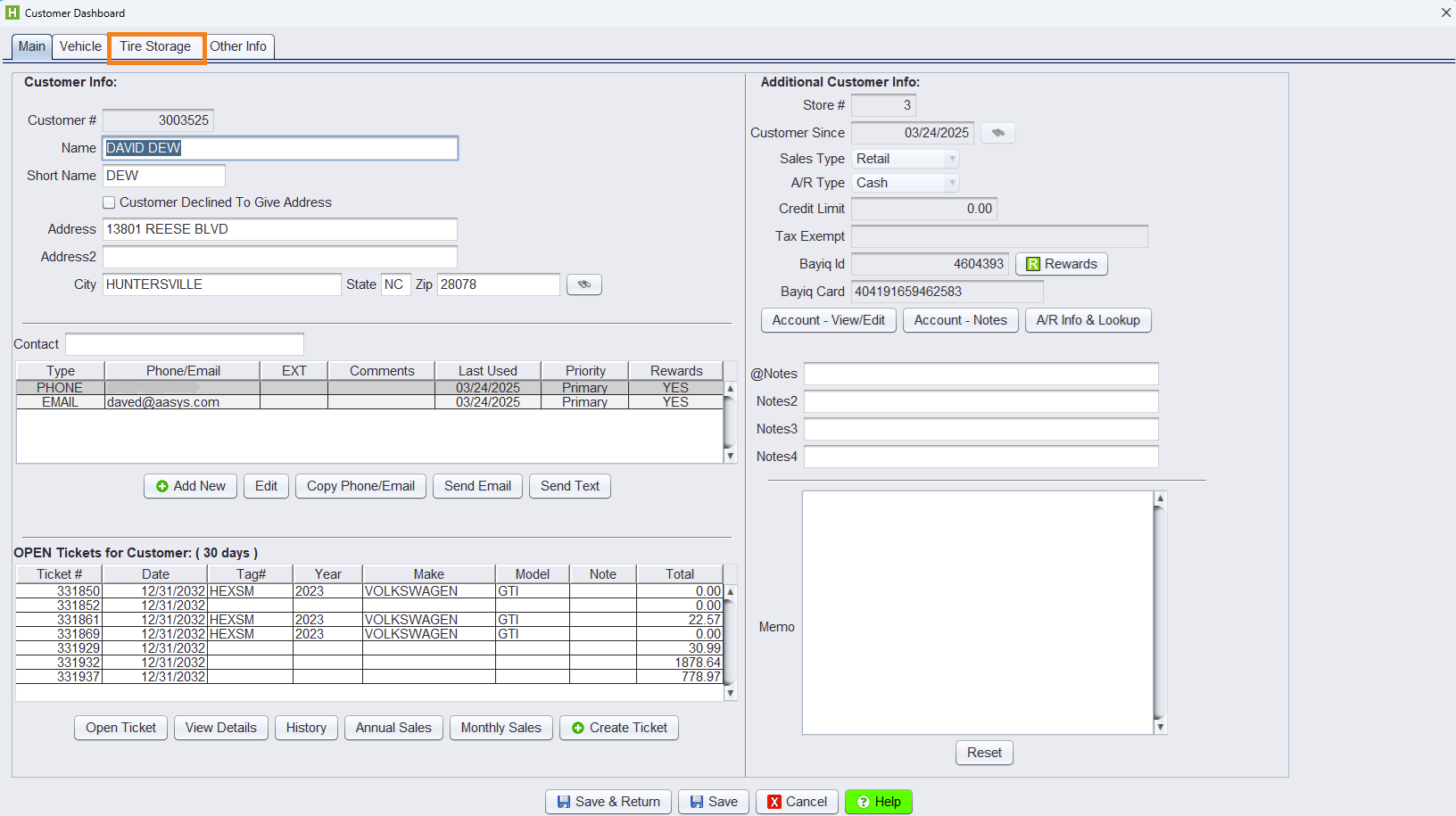
The Tire Storage feature allows shops to record, track, and manage tires stored for customers. This functionality is available as a dedicated tab within the Customer Dashboard screen as well as the Customer View & Edit screen which can be enabled or disabled based on shop preferences.
Accessing Tire Storage
You can access the Tire Storage tab from either:
- Customer Dashboard
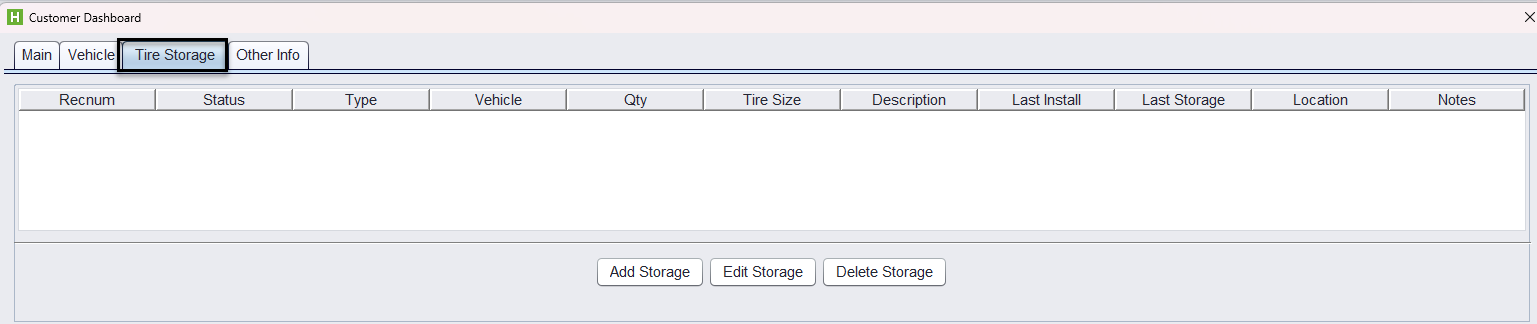
- Customer – Account – View/Edit

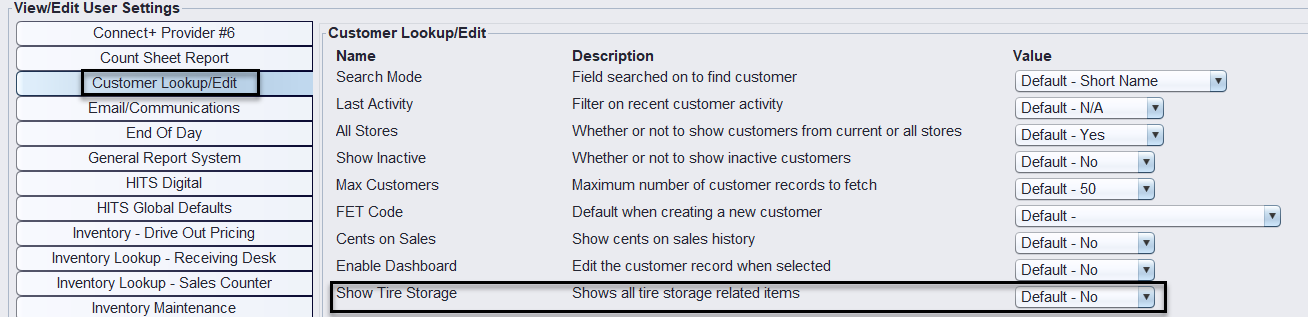
The tab is not visible by default but can be toggled on/off in Store > View/Edit Default Settings > Customer Lookup/Edit
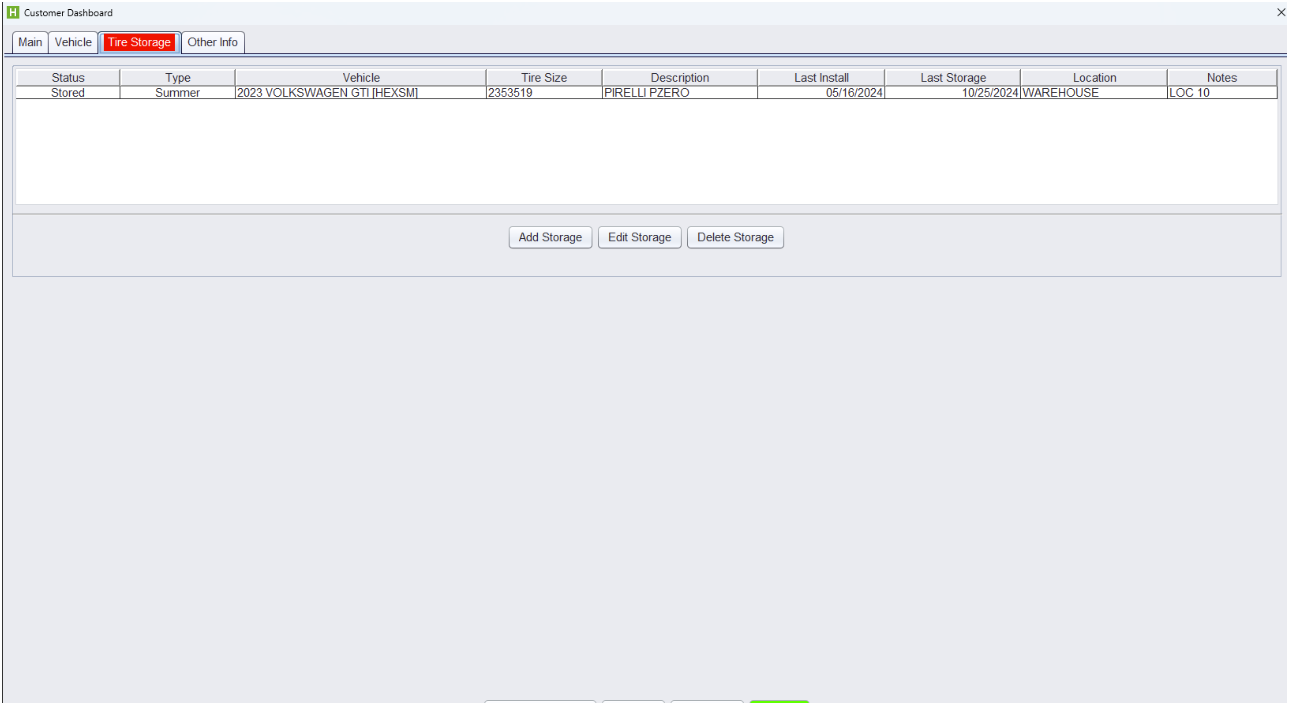
If any tire is currently stored, the tab turns red for quick identification.
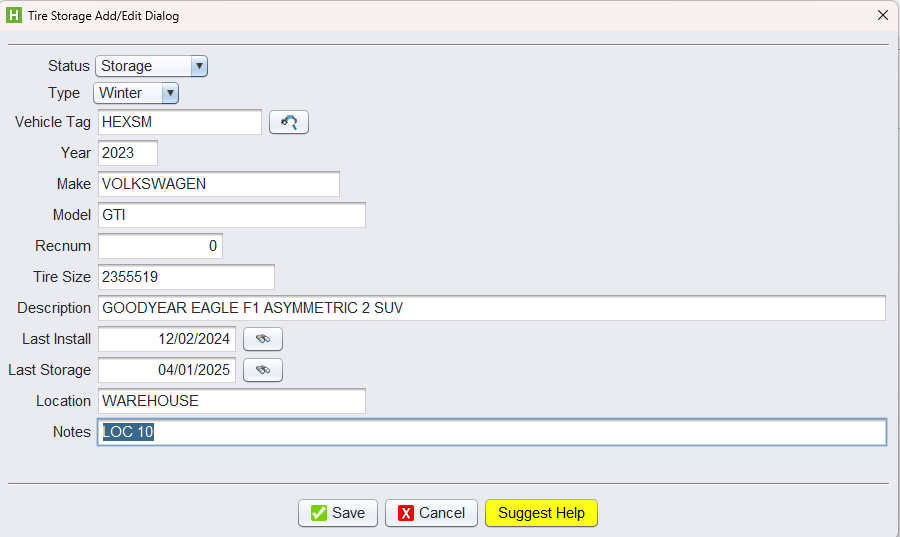
- Add Storage: Opens the Tire Storage Add/Edit Dialog window, where the user can enter all tire storage details.
- Edit Storage: Opens the same dialog as Add but pre-filled with the selected record.
- Delete Storage: Prompts for confirmation, then marks the record as Inactive (soft delete).
- Deleted records do not appear in the table but remain in the database for reference
Managing Stored Tire Records
Use the Add Storage button to record:
-
- Status:
- Storage – Tires are currently stored
- Installed – Tires are on the vehicle
- Returned – Tires were picked up by the customer or are no longer in storage
- Tire type (Summer, Winter, Other)
- Tire size and description
- Vehicle info (Year, Make, Model, Tag)
- Storage location (e.g., Warehouse, Rack A, Bin 3)
- Install/Storage dates
- Notes for internal tracking
- Status:
Note: Records in storage appear at the top of the list and the tab will appear red.
Vehicle Association
Each tire set can be linked to a specific vehicle, allowing clear tracking of what belongs to whom and when it was stored.
Storage Location Tracking
Use the location field to note where the tires are physically stored (e.g., Rack A, Shelf 3), making retrieval simple and organized.
Seasonal Follow-Up
Customers with active tire storage records are easily identifiable, helping your team follow up during seasonal changeovers.
Tire Storage Report – How to Run
The Tire Storage Report provides visibility into all tires currently stored for customers across your locations. This report helps shops quickly identify where tires are stored, which customer they belong to, and related vehicle detail
How to Access the Tire Storage Report
- Views → Reports → Journals → Tire Storage Report
- The Tire Storage Report parameter screen will open.
- Select the desired filters (described below).
- Click Run Report.
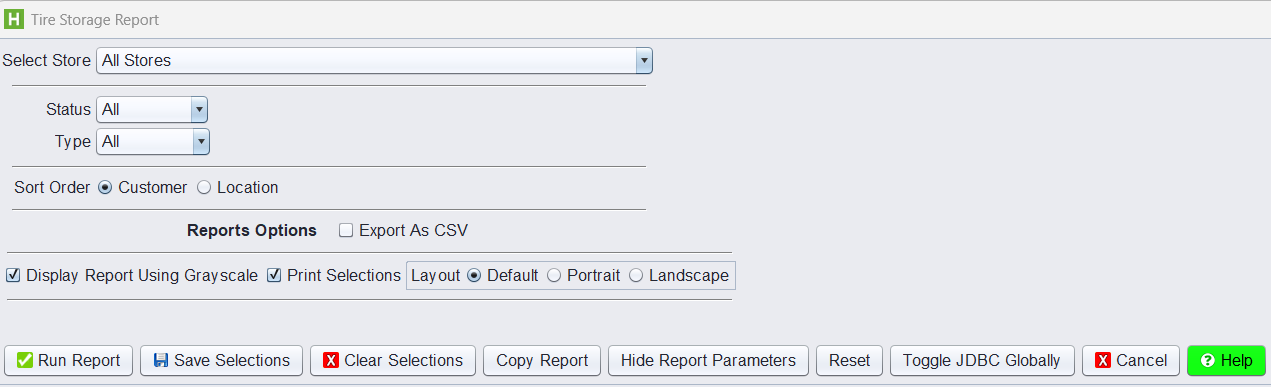
The report lists stored tires by customer and vehicle and includes storage details.