
Class Inventory Defaults allow you to apply specific field selections, tire packages, etc. based on a product’s Class Code, rather than solely relying on Inventory Defaults by Department.
Setup Steps
1.) Assign Class Codes to Inventory Items
Use the inventory import/export process to group applicable existing inventory items.
-
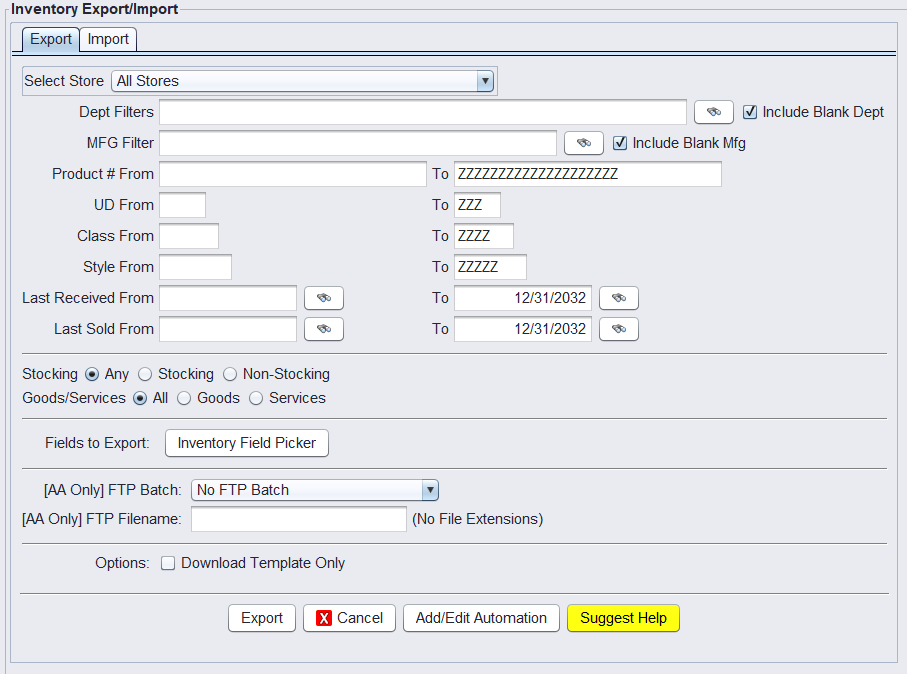
- Go to: Views > Admin & Utilities > Inventory > Inventory Import/Export
- Export the current inventory list ensuring to select CLASS from the Inventory Field Picker
- In the CLASS column, assign a code such as BAL (for balance), PREM, or any internal label
- Save and re-import the file to apply the new class values
Tip: You can filter by Manufacturer, Department, or other filters before assigning a class code.
2.) Add Class Inventory Defaults
After assigning class codes to items, or if you already have items with a correct Class code assigned, use the Class List screen to define the behavior for each class.
-
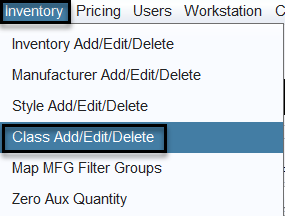
- Go to: Views > Admin & Utilities > Inventory > Class Add/Edit/Delete
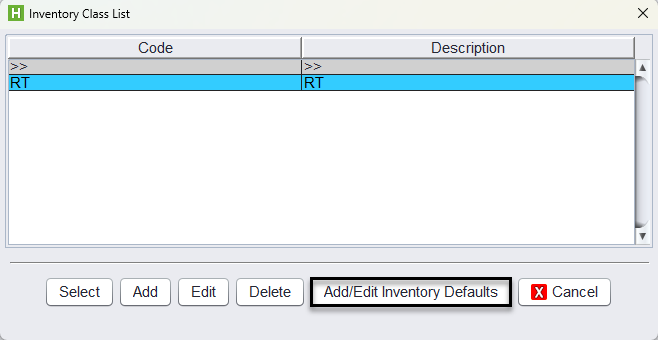
- From the Inventory Class List screen click Add/Edit Inventory Defaults
- In the Add/Edit Inventory Defaults screen define the following
- Package ID(PKG#) – the default package to apply
- UT1, Stock, Tax, or Scrap options
- G/L Code, Table Code, and others if needed
-
- Click Save once the class settings are completed
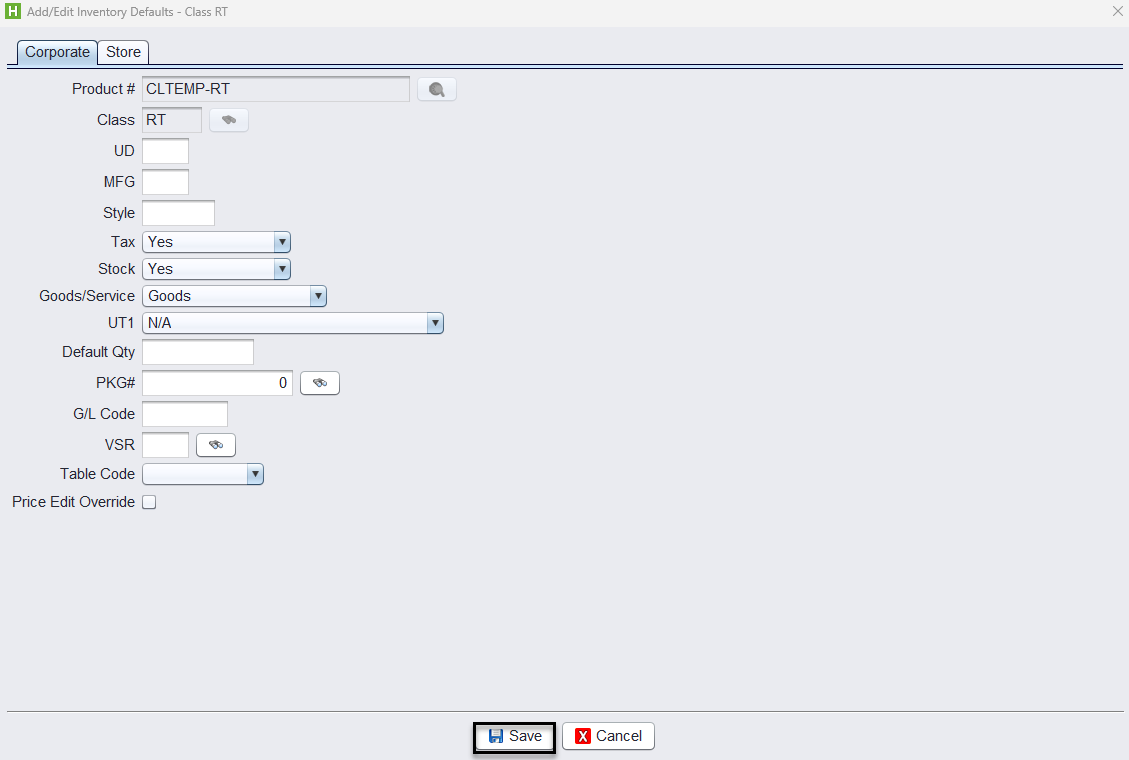
This step sets the default behaviors that should apply to inventory items tagged with the corresponding Class Code.
3.) Apply Class Defaults to Inventory
To push the default values into existing inventory records:
-
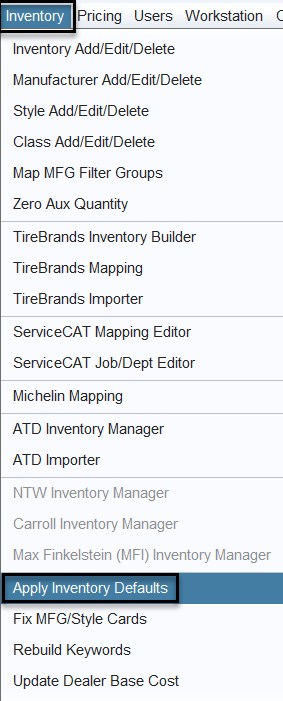
- Go to: Views > Admin & Utilities > Inventory > Apply Inventory Defaults
- In the popup,
- Select the correct Inventory Class Default
- Check only the fields you wish to update (e.g., PKG#, UT1, Tax, etc.)
- Click Apply Defaults to push the class settings into your inventory record
This step updates inventory records that already contain the class code, applying the defined defaults system-wide.

Final Testing & Use
After completing the above:
-
- Log out and log back into HITS
- Create a quote or ticket
- Add a product tied to the class
- Confirm that the default package and other class-defined settings appear automatically
Notes
-
Class defaults only apply when a product has a class code
-
These override department defaults but can be overridden manually at the ticket level
-
Common use cases: free balancing, seasonal packages, vendor-funded rebates
-
Changes apply system-wide after users log back in