
You have the ability with BPOS to build packages and link them directly to a job in ServiceCAT/LubeCAT so that each time you put that job on a ticket, the package will automatically be included. For instance, you may want to include in-store warranty information with a brake job or you might want to include various special pricing to be included with oil changes.
1.) Click Views > Administration & Utilities > Corporate > Package Add/Edit — click OK to close the Warning screen
2.) Find the package you wish to link to a job in ServiceCAT and double-click on it to open it
3.) On the Ticket View/Edit screen (shown below), click on the Package Shortcut button at the bottom of the screen
4.) On the Manage Package Shortcuts screen (shown below), check the box beside ServiceCAT Settings
5.) Click the binoculars beside the Associated Job Code box
6.) Find the Category for your job. For example, for oil changes, select Lubrication
7.) Find the specific Job to link to in ServiceCAT
8.) Click OK
9.) Click Save:

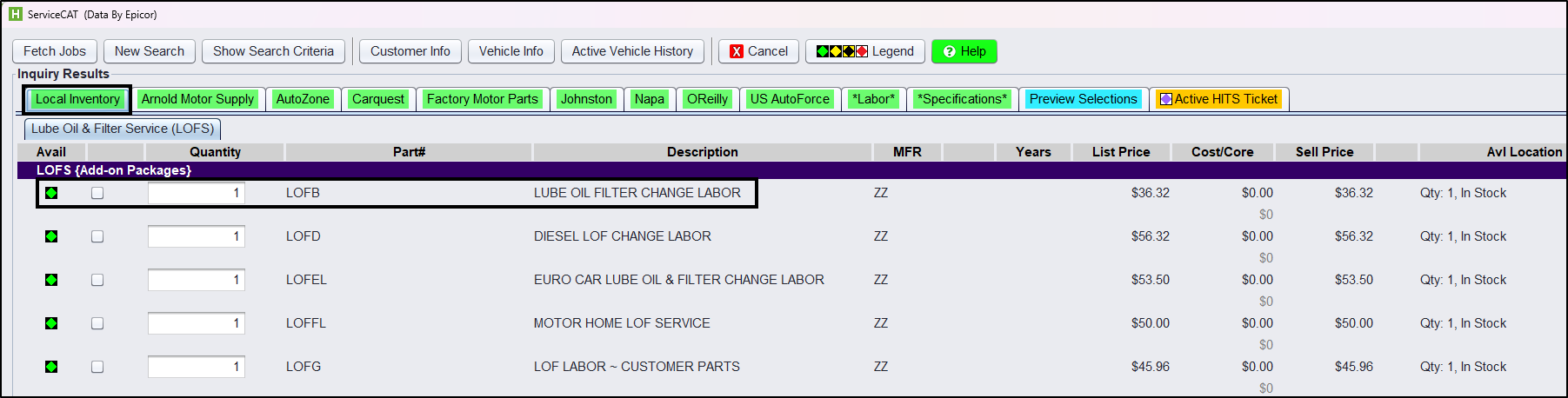
Now, your package will be available for selection in ServiceCAT on your Local Inventory tab the next time you access this particular job:
*For help with creating packages, see the instructions here: Creating Service Packages