
The Accounts Receivable (AR) module in HITS provides a centralized way to manage all customer charge account activity. From posting payments to tracking balances and applying finance charges, AR functions help maintain accurate records for both single and multi-store operations.
AR processing in HITS is managed through the Bookkeeping View, where you can view open transactions, post payments, issue credits, and review aging summaries. Together, these tools streamline daily bookkeeping tasks and ensure financial accuracy across stores.
Access the Bookkeeping View
The Bookkeeping View serves as the control center for all AR-related activity. From here, you can look up customers, post payments, review open transactions, and access AR summaries.
To access Bookkeeping View:
1.) Go to View pull-down menu
2.) Select Bookkeeping
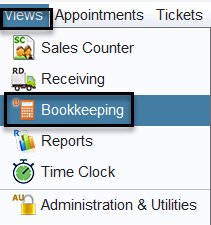
From this view, you can:

- Look up customers
- Post ROA payments
- Review open invoices and credits
- Access AR reports and summaries
Multi-Store, Terms, Finance, and Credit
- Multi-store: Payments and disbursements can be applied regardless of which store billed the customer.
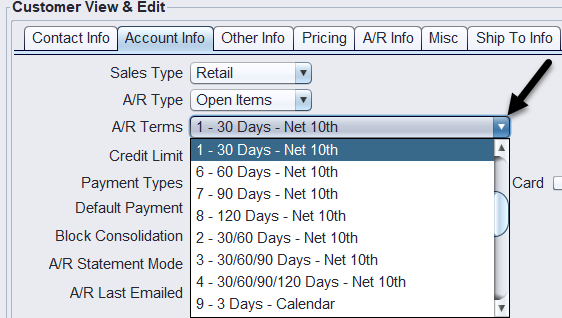
- Terms: Select the customer’s default payment schedule for A/R invoices. Terms may calculate one due date, such as 30, 60, 90, or 120 Days – Net 10th, or divide the invoice across multiple due dates, such as 30/60 Days, 30/60/90 Days, or 30/60/90/120 Days – Net 10th. When split terms are used, the portions are identified in Customer A/R Information by a Split Seq letter such as A, B, C, or D. Calendar terms calculate the due date using the specified number of calendar days from the invoice date. These terms become the customer’s default when Apply Customer’s Default A/R Terms is selected during ticket payment. Any customer that is not set to the default 1 – 30 Net 10th will show a flag as a visual reminder of such in the Split Seq column.
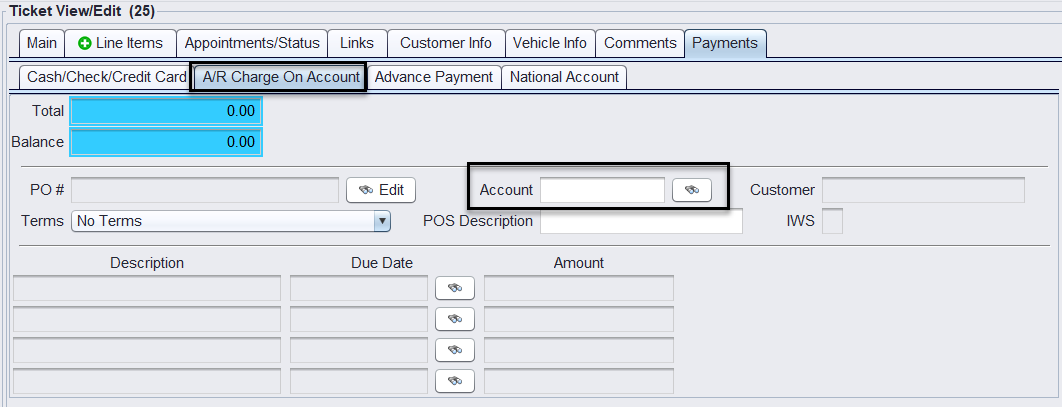
- Alternate billing account: A customer has a billing account number and may be billed to an alternate billing account (e.g., fleet/commercial).
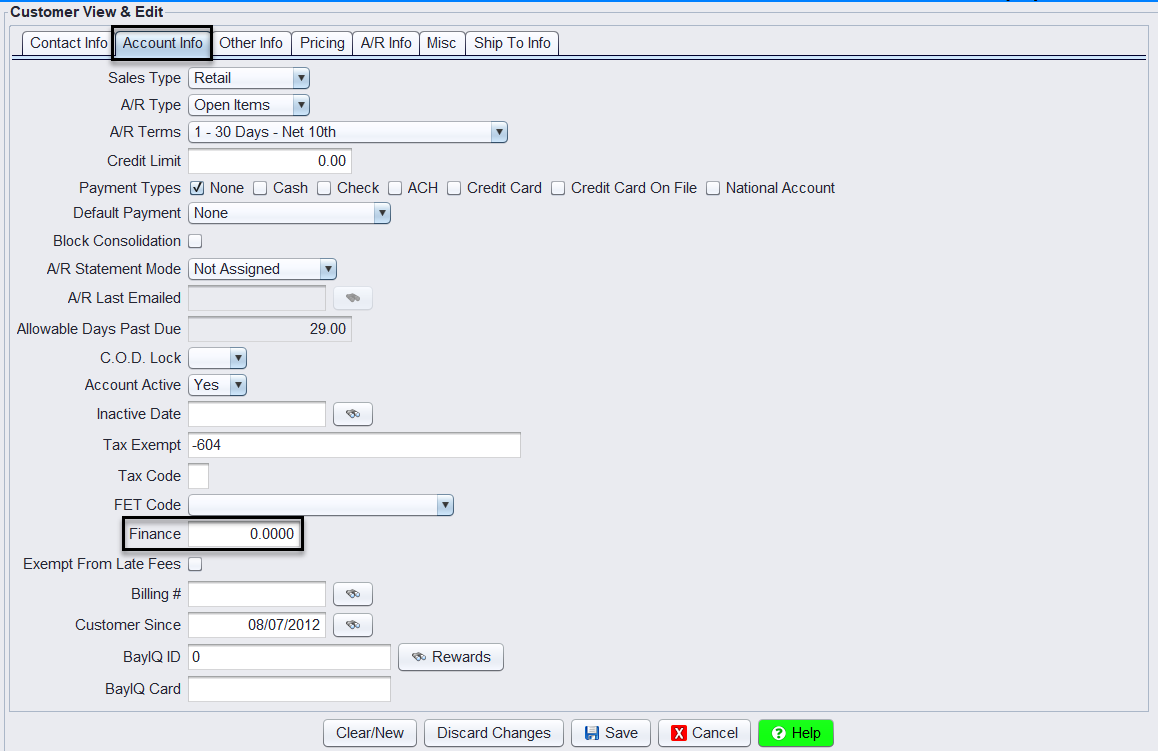
- Finance rate: The system has a default finance rate for AR aging; customers may have a unique rate (lower or higher than default).
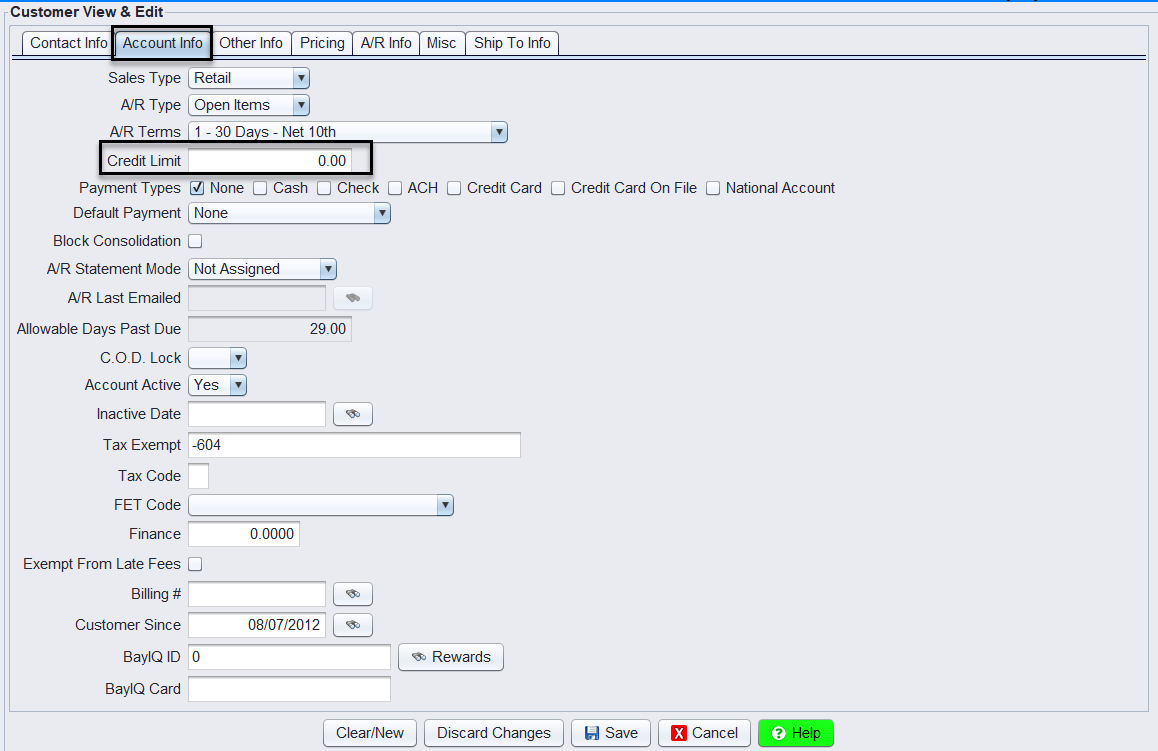
- Credit limits: The system has defaults for allowable days past due and credit limits; individual customers can have special limits or be exempt. If a customer exceeds their limit, invoicing is blocked unless a manager with password permission applies a credit override at POS.
Customer Lookup

Before posting payments or viewing balances, look up the customer account.
To perform a lookup:
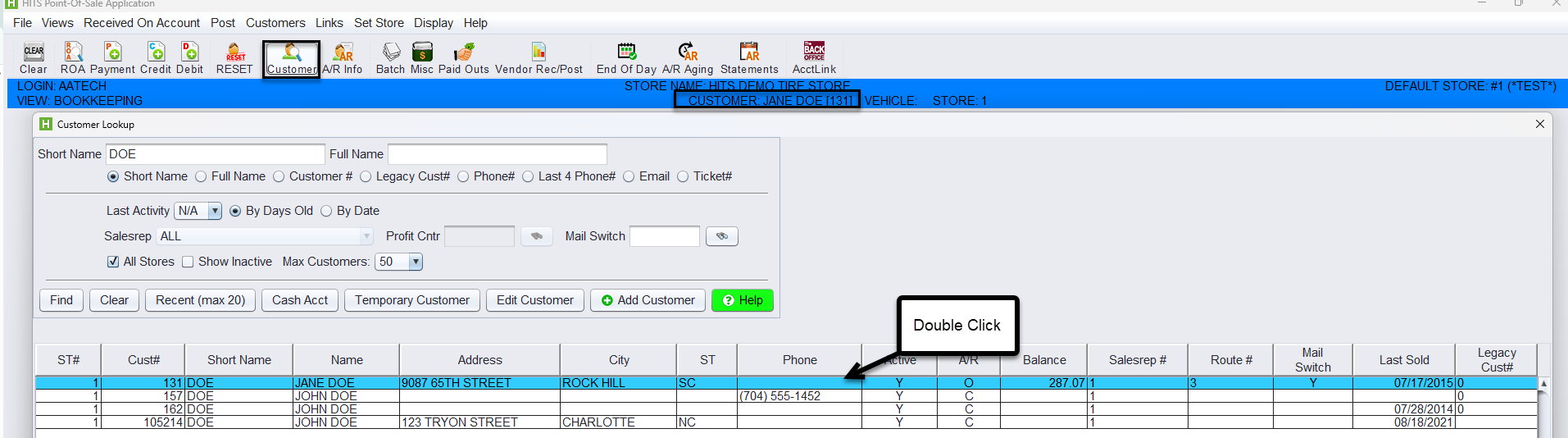
1.) Click the Customer Lookup icon on the toolbar.
2.) Search by:
-
-
- Short name or full name
- Account number
- Phone number (full or last four digits)
- Email address or ticket number
-
3.) Double-click to make the record the Active Customer.
The active customer appears on the information bar and remains linked for any AR functions performed.
For step-by-step instructions, see:
Adding/ Editing Customer Accounts With Extended Information
Posting Payments
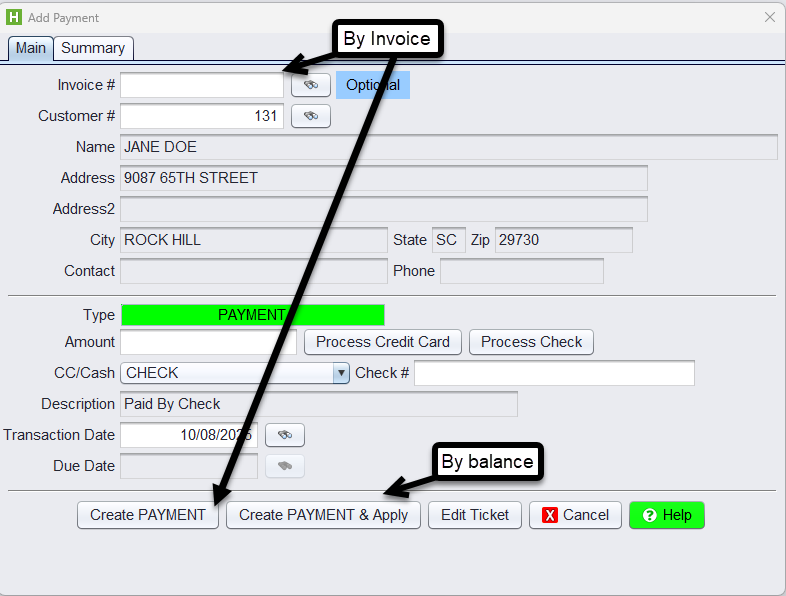
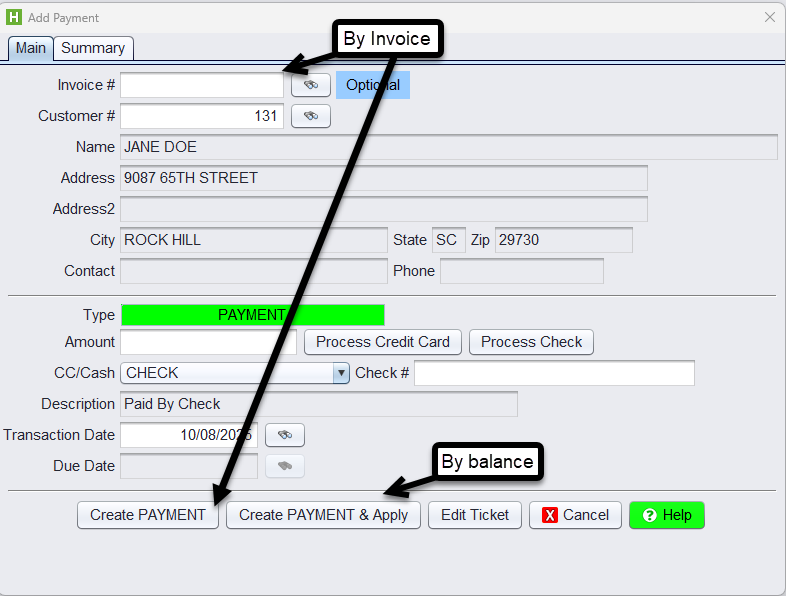
Payments can be posted in two ways:
- By balance – Apply a payment to the customer’s overall balance.
- By invoice – Apply a payment to a specific invoice or set of invoices (Open Item AR).
Most users process payments through Open Item AR, as it allows direct application to outstanding transactions.
For step-by-step instructions, see:
ROA – Post a Payment