After you have aged your accounts, you can email and/or print your A/R Statements.
Prior to running your statements in HITS for the 1st time, you will need to add your A/R Cut Off Date and your Remit To Address into the system settings, along with any other statement preferences. HITS Support can also assist with this process. Click the link to see how to Initially Setup & Configure A/R Statements.
To Email and/or Print Statements in HITS:
1.) Click on Views –> Bookkeeping
2.) Click on the A/R Statements icon 
3.) Click on A/R Statements – Open Items Accounts
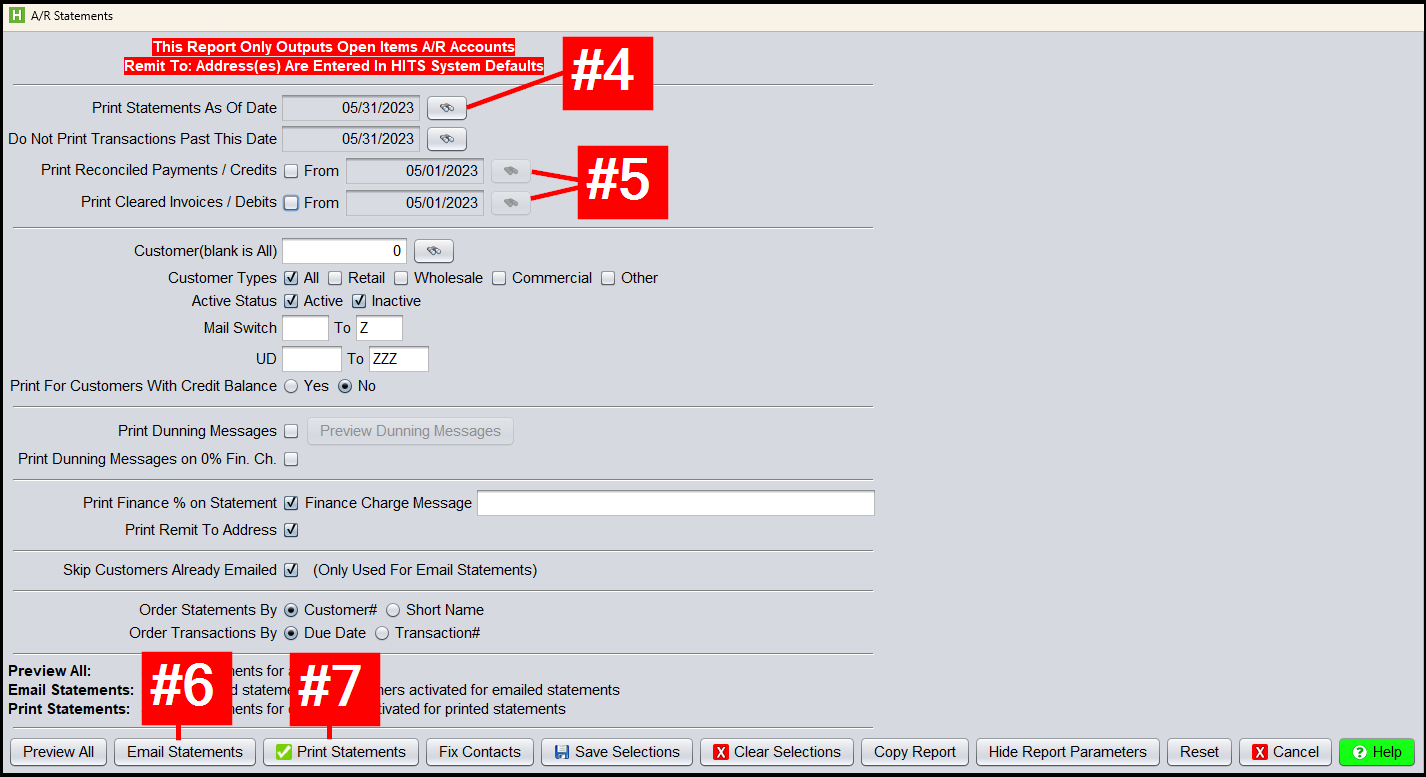
4.) Verify that the Print Statements As Of Date is the correct date or edit if needed
5.) Review the selection options carefully. Most options have already been set via your defaults. However, there are a few options you may wish to select. If you wish to Print Reconciled Payments/Credits and/or Print Cleared Invoices/Debits, you will need to check the box beside each of those options and edit the FROM date for each option as needed.
6.) Once you are done reviewing your options, you will move on to emailing your statements to those customers who have opted to receive an emailed statement. Click on Email Statements. If you have no customers receiving emailed statements, skip to the next step. The system will let you know how many it is sending with the Process bar. The sent emails will be listed under your sent email (if using SMTP email service) or under the Administration & Utilities>Communications>Sent Email Queue (if using SendGrid). See Email Setup document for more details
7.) Once the Email Statement routine completes, you can click on the Print Statements button to print the rest: