The Advance Payment feature in HITS allows customers to make a full or partial payment on Open Workorders directly from the tickets Payments>Advance Payments tab. This functionality improves workflow efficiency, enhances payment accuracy, and replaces the need for traditional layaway programs.
⚠️ Important: Advance Payments are supported on Cash Accounts only. Customers on Open Items accounts cannot use this feature.
When to Use Advance Payment
- To collect a deposit before parts are ordered or work begins.
- When a customer wants to prepay for a portion of the goods or services.
- To secure commitment for future work and reduce no-shows.
- As an alternative to a layaway process.
How it works
1.) Navigate to the Open Workorder > Click on the Payments tab > select the Advance Payments tab.
2.) Apply the Payment:
– Click on Make Payment
– Enter the payment amount (partial or full).
– Select the payment method.
– Click Create PAYMENT.

The Make Payment button opens a dialog box similar to the standard Post ROA Payment screen. This familiar layout helps streamline the payment entry process. If your store uses the FirstMile credit card integration, selecting Process Credit Card will launch the FirstMile authorization prompt. Once authorized, click Create Payment to apply it to the Workorder.
Example: A customer leaves a $100 deposit on a $624.42 Workorder. After applying the advance payment, the remaining balance shown on the Cash/Check tab becomes $549.50.
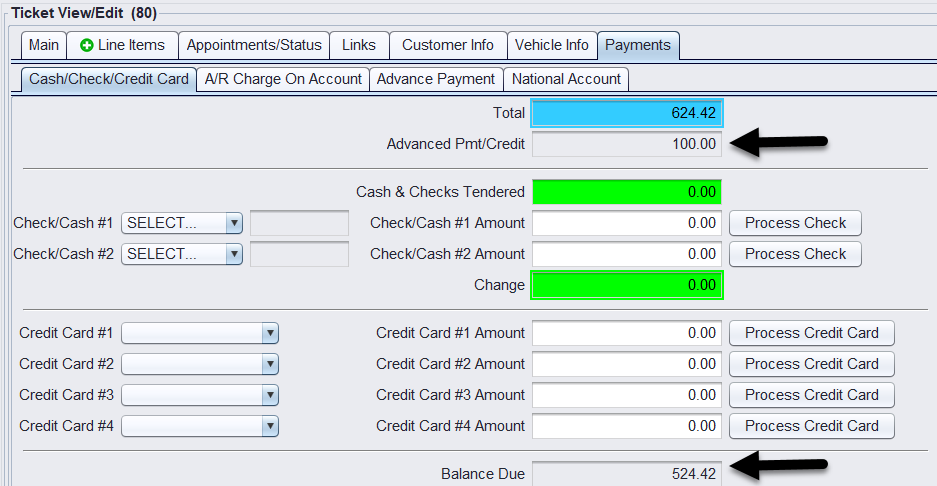
After posting an advance payment, a payment receipt can be printed for the customer indicating the amount and method of payment. Or you can print the open workorder with the miscellaneous adjustment (advance payment) applied to the total adjusting the ticket balance.

You can apply multiple advance payments to a single Workorder. All payments will be reflected in the ticket balance and reconciled when the ticket is finalized.
3.) Behind the Scenes (System Behavior):
-
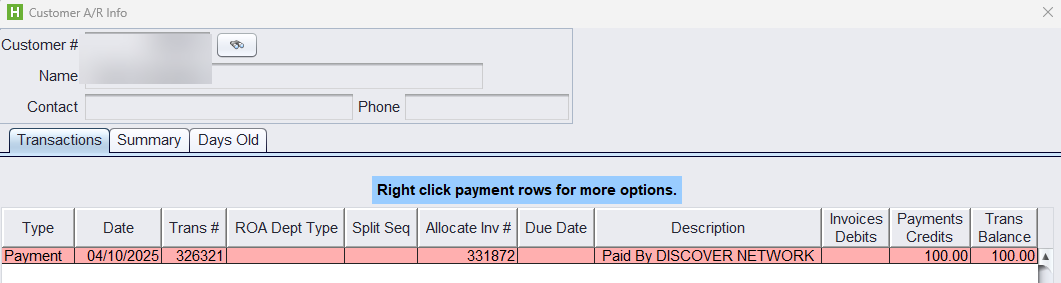
- The payment is posted as an ROA (Received on Account) for the customer.
- The advance payment is recorded on the date the payment was made.
- The payment is allocated to the specific Workorder and reduces the ticket total.


-
- The customer’s A/R Account will show a PAYMENT until the Workorder is closed and the customer is temporarily changed to an Open Items customer which will only accept Advance Payment transactions.
-
- Close the workorder once all payments have been made to the total amount of the workorder. Upon closing the Workorder, the ROA is automatically applied and allocated to the final invoice and the Account Type is returned to Cash. The Workorder must have a $0 balance before it can be finalized. HITS will not allow the ticket to be closed unless all payments, including advance payments, have been properly applied.
Reversing an Advance Payment
You may want (or need) to reverse an advance payment in several situations:
- Customer cancels the order or service before work is performed, requiring funds to be reallocated or refunded.
- Incorrect amount collected at the time of payment (overpayment, underpayment, or wrong customer).
- Payment method declined/failed after being entered (e.g., credit card reversal, bounced check).
- Business policy requiring funds to move from an “Advance Payment” status to an “Open Item” charge once the work order is finalized.
Steps to Reverse an Advance Payment
1.) Access the Ticket
-
-
Navigate to the relevant ticket for which the advance payment needs to be reversed.
-
Click on the Payment tab.
-
2.) Reverse the Advance Payment
-
-
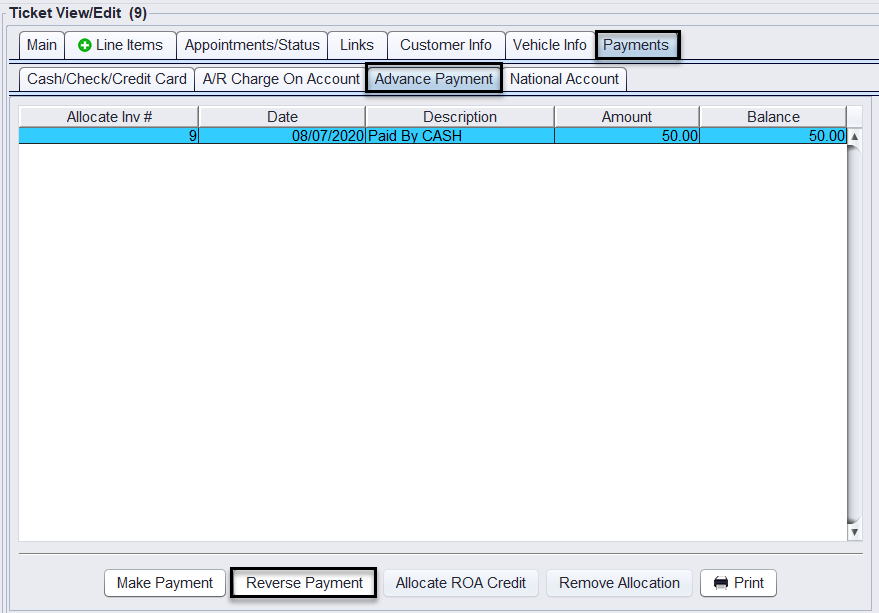
Within the Payment tab, click on the Advance Payment sub-tab.
-
Select the appropriate advance payment.
-
Click Reverse Payment.
-
-
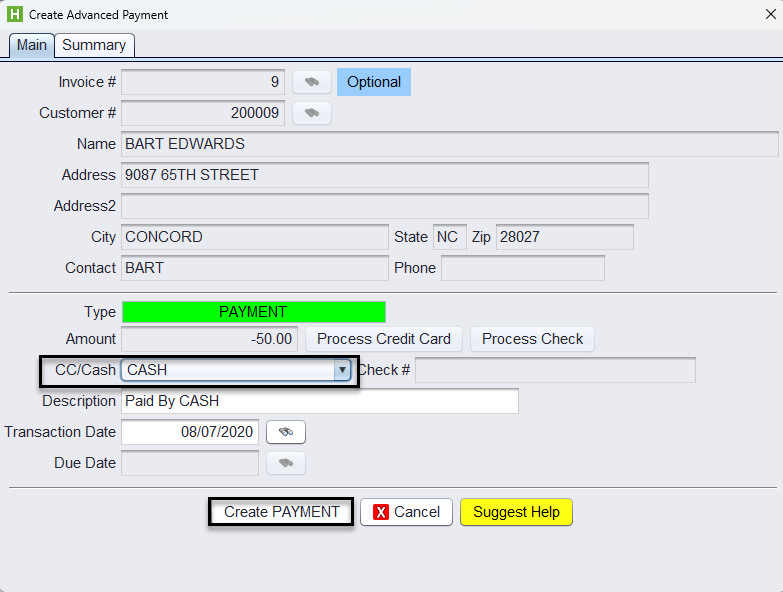
- Finalize the Reverse Payment by selecting the exact same payment method as the advance payment and click Create PAYMENT.
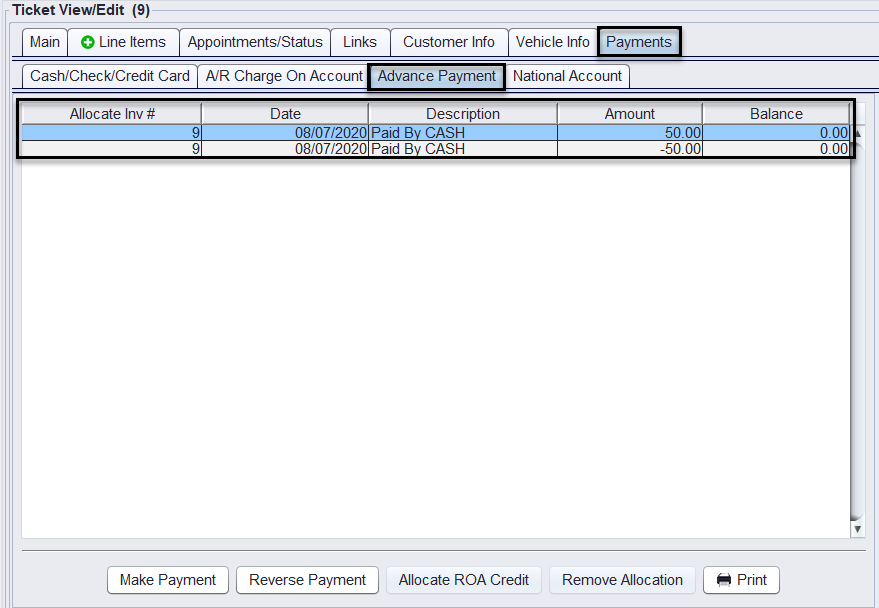
Now there will be the payment and the reversed payment recorded under Advance Payment tab on the ticket.
Note for 1st Mile Users:
If the payment was by credit card through the 1st Mile integration, ensure the refund has already been processed in 1st Mile and reported successfully. The reversal in HITS does not issue a refund—it only creates the offsetting entry.
Removing the Advance Payment from A/R
⚠️ This step must be completed before the ticket can be closed.
1.) Access Customer AR Information
-
-
Go to the Customer tab.
-
Select Account → AR Info & Lookup.
-

2.) Update Search Criteria
-
-
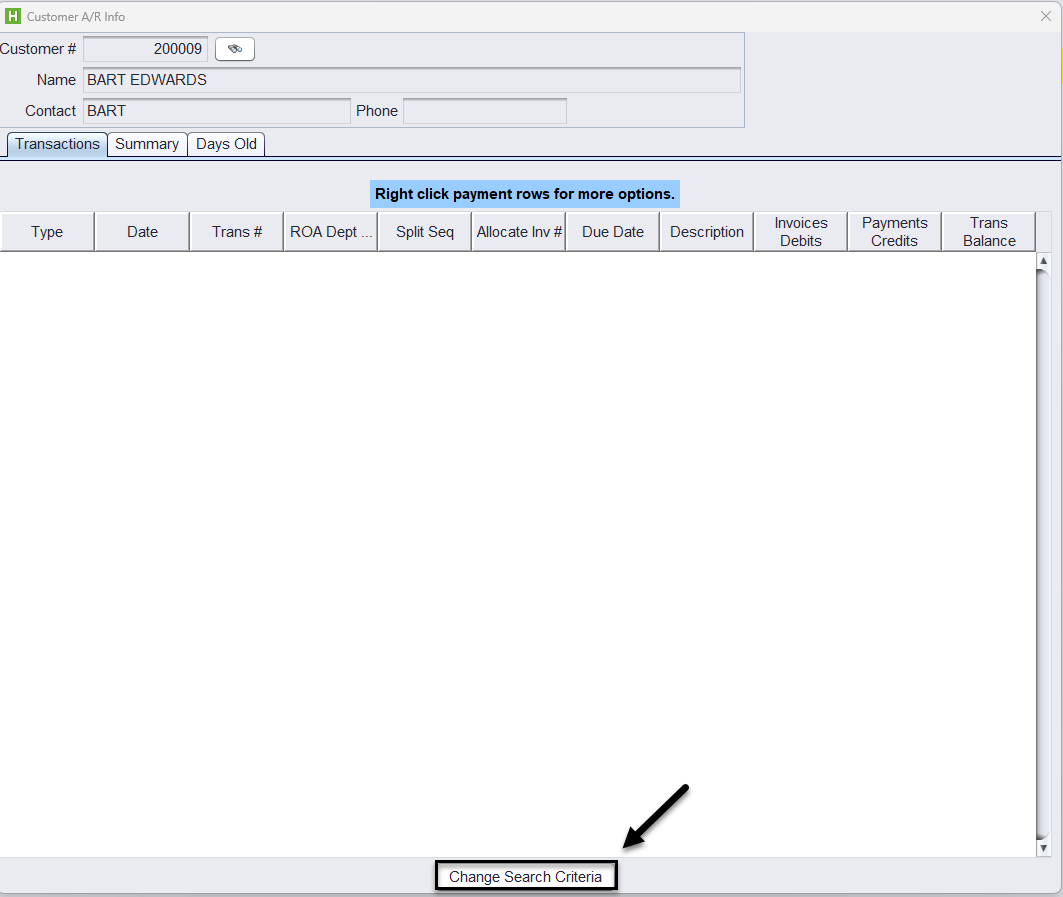
Click Change Search Criteria.
-
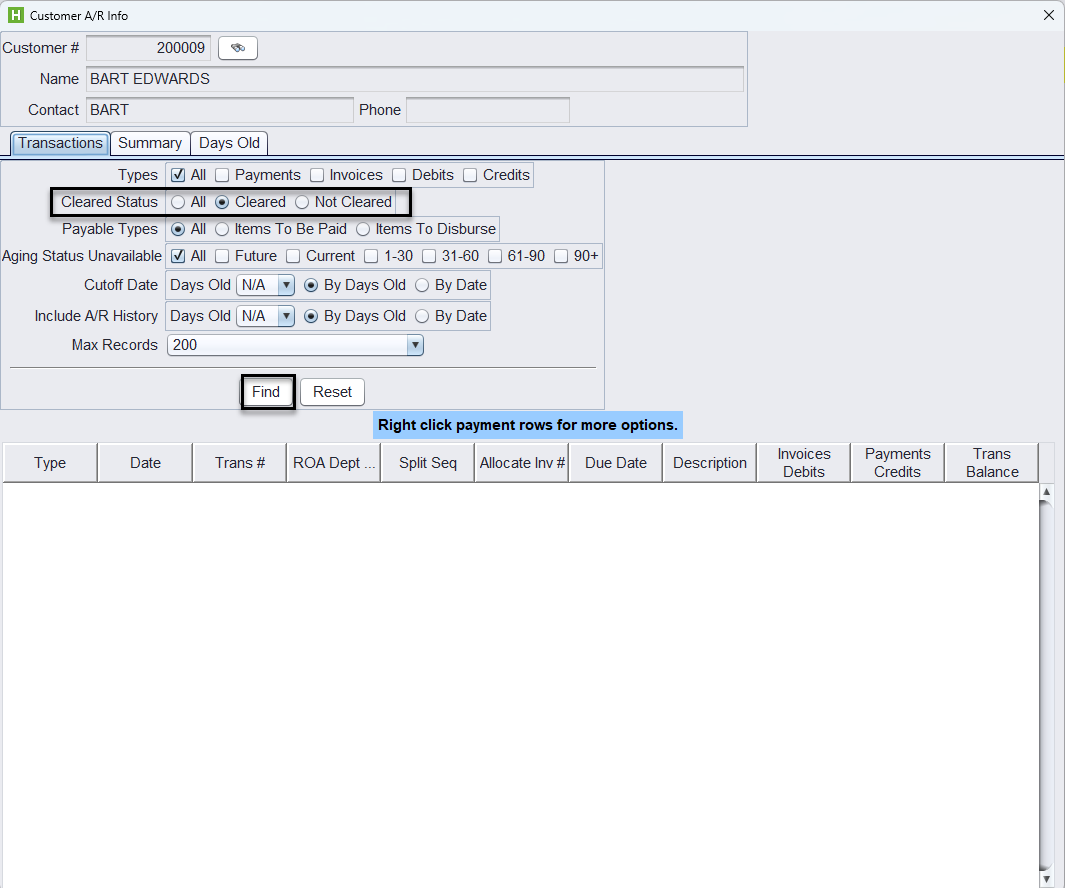
Set the filter to Cleared and click Find to view all cleared transactions.
-
3.) Remove the Allocated Advance Payment From Workorder
-
Locate both the original advance payment and its corresponding reversal.
-
Right-click on each and select Remove Allocation From Workorder.
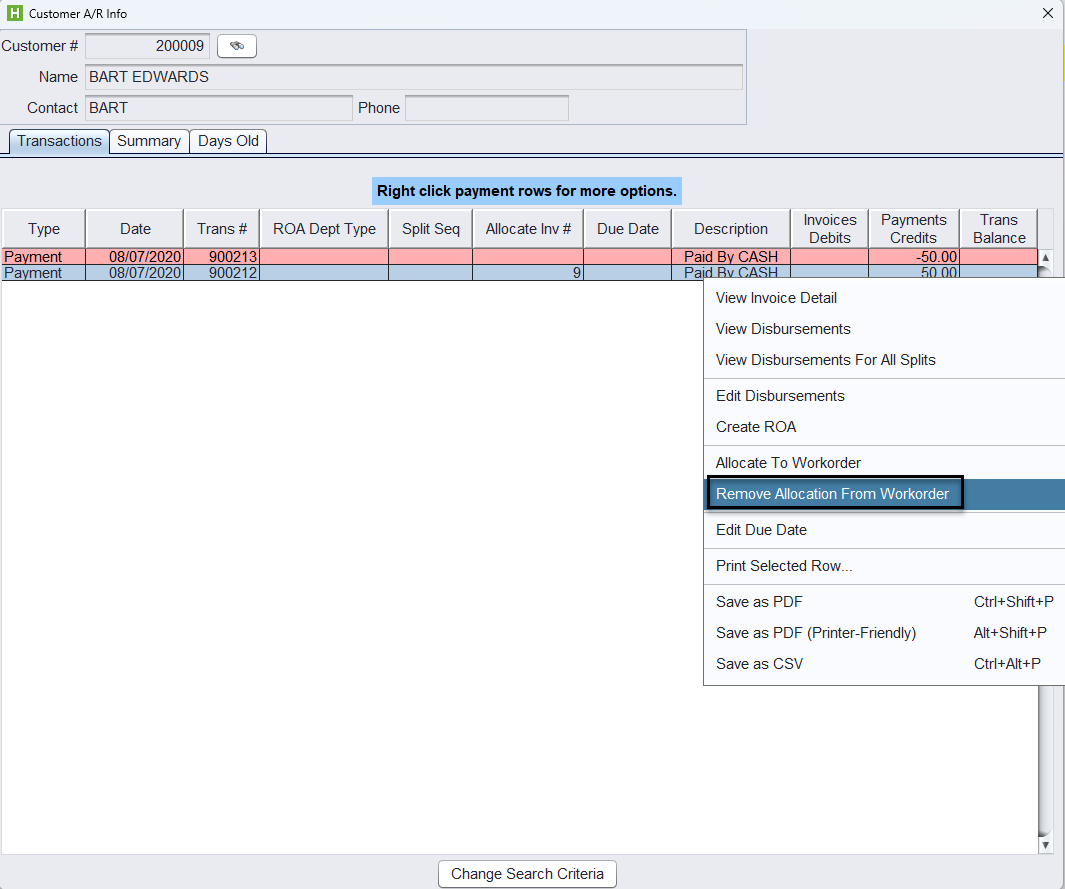
This step removes the advance payment’s association from the original ticket, allowing the ticket balance to be adjusted correctly.
4.) Finalize the Ticket
- Once both allocations have been removed, the ticket can be closed.
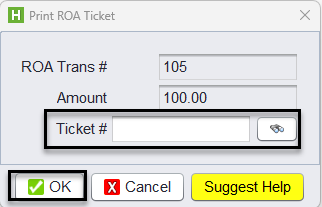
If a customer has a credit on an account you can access their A/R Info & Lookup screen, right-click on the credit, and then click Allocate To Workorder. Enter the open workorder number (Note: You can click the Copy# button from the Main tab of the workorder prior) and then click OK.
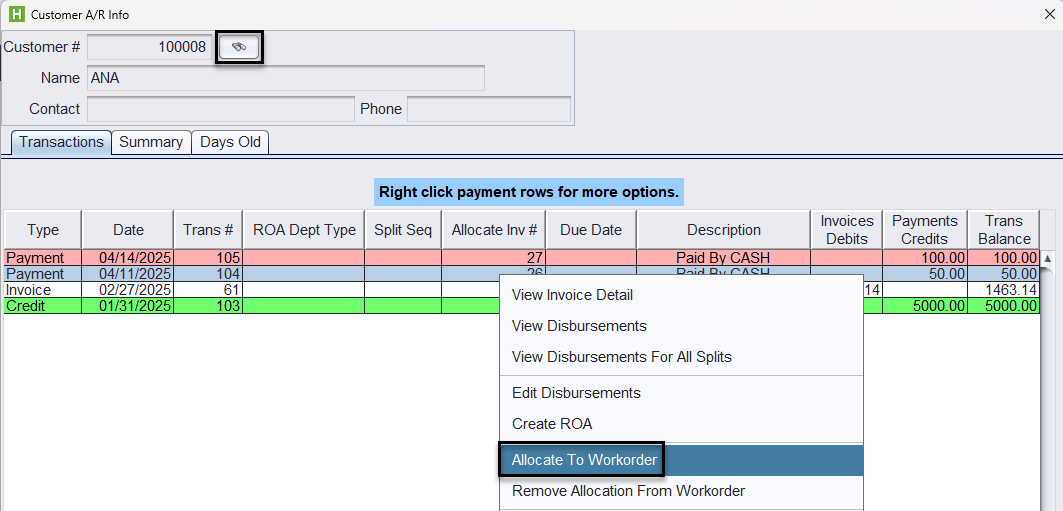
Once the ticket is finalized and closed, you will notice that the credit is reconciled accordingly on the customer’s A/R account. (Note: This cannot be allocated to an invoice)
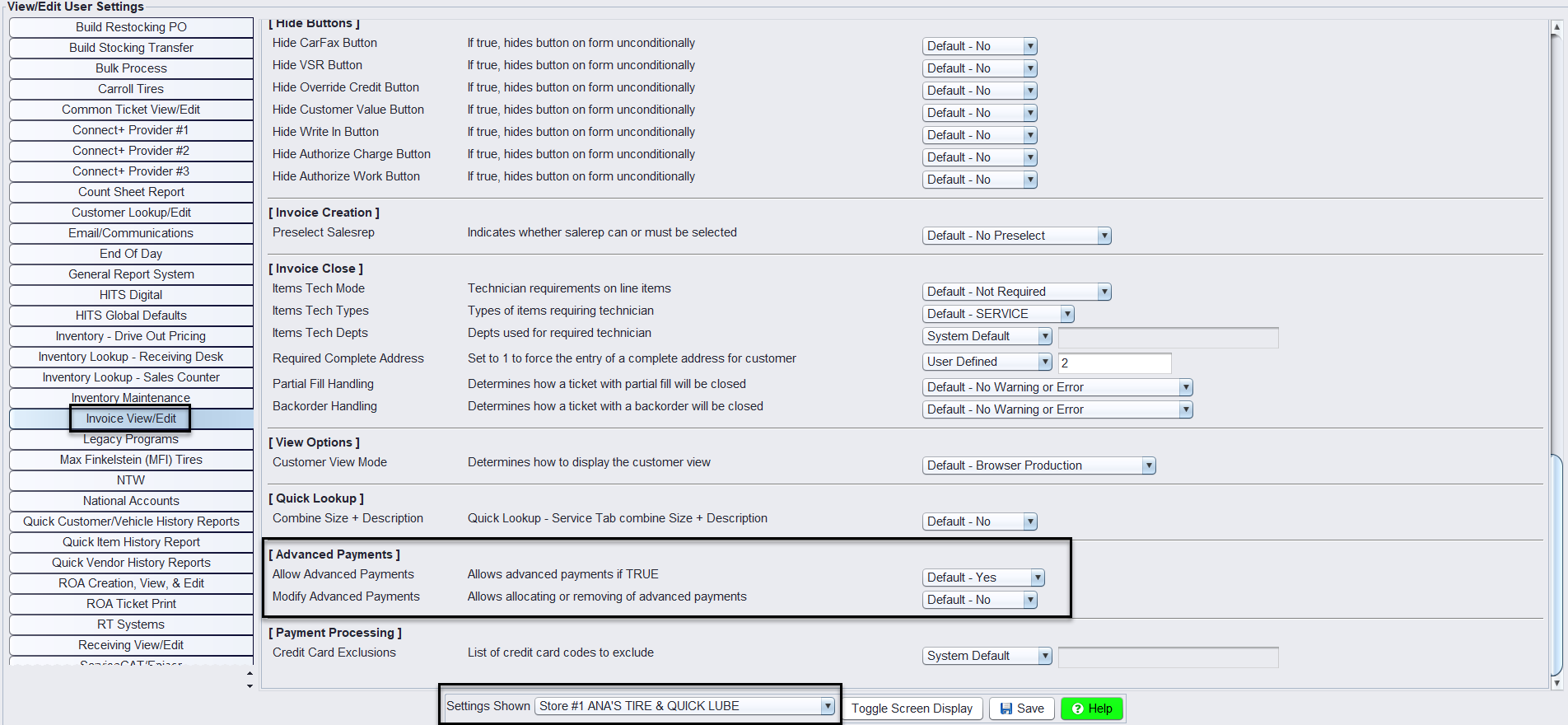
Note: This feature is enabled by default at the store level. To edit or remove permissions, please go to Views>Administration & Utilities>Store>View/Edit Default Settings and select Invoice View/Edit from the left panel and scroll down until you see Advance Payments options for each store individually under Settings Shown. Users must have P17=Y or P17=1, check Permission Switches for the appropriate setting.
- Allow Advance Payments turns this feature off/on.
- Modify Advance Payments allows allocating or removing of advance payments.