
The Drive-Out Pricing tab within the Inventory Lookup helps speed up and simplify tire sales by offering consistent, package-based pricing, allowing staff to quickly quote, adjust, and sell tires, all from one screen.
Accessing the Drive-Out Pricing tab
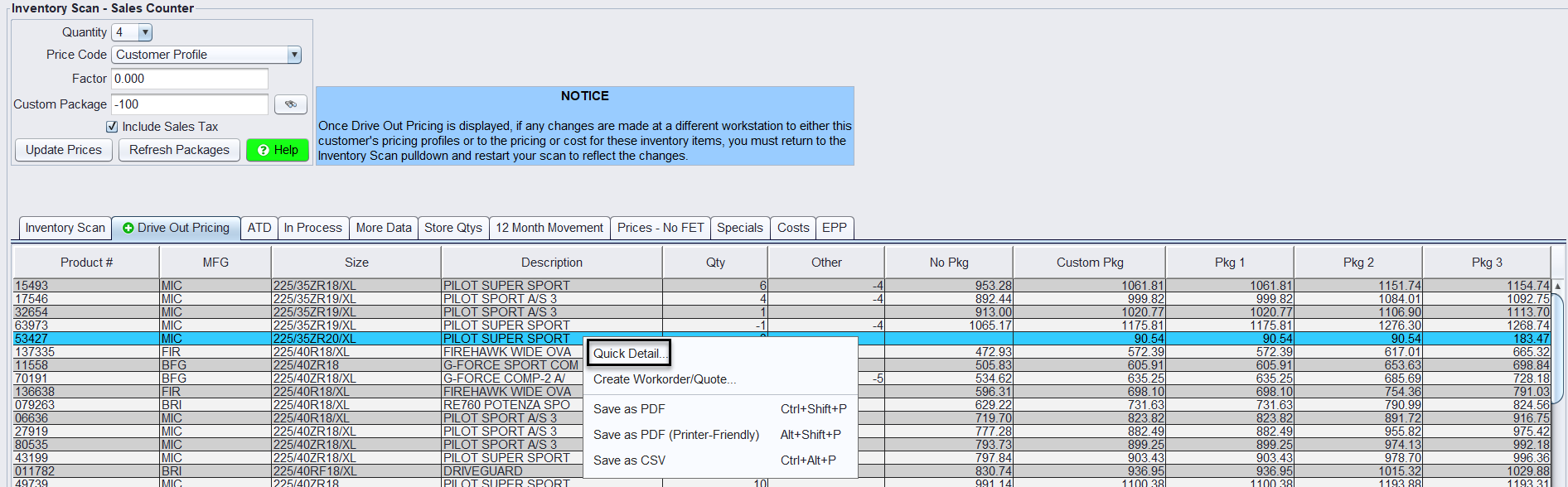
Begin by searching for tires by clicking on Views>Sales Counter>Inventory Lookup screen.
Navigate to the Drive-Out Pricing tab to view pricing options by tire package.

Understanding Tire Packages
Each store may have three standard packages set up:
Package 1: Good Package
Package 2: Better Package
Package 3: Best Package
Viewing Package Adders
- Right-click within a package column (e.g., Best Package). MUST CLICK ON THE DESIRED PACKAGE COLUMN.
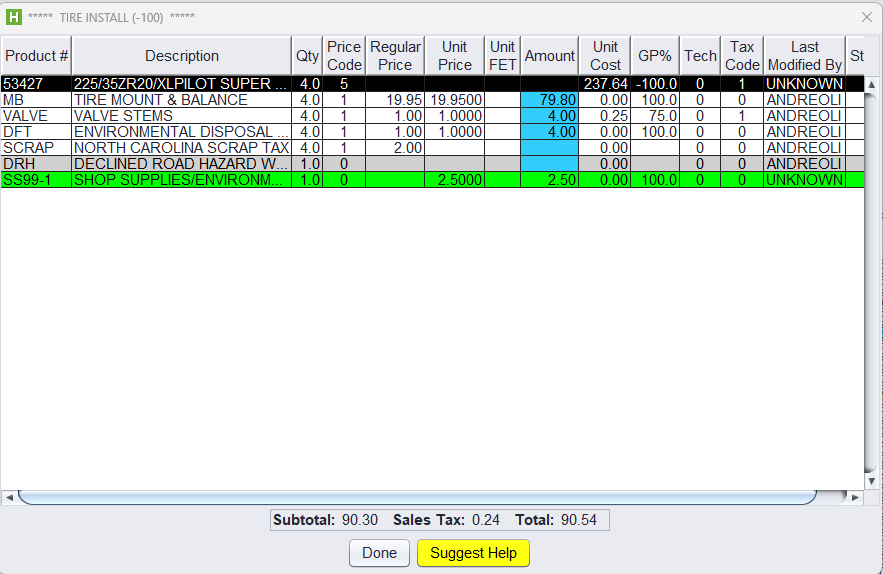
- Select Quick Detail to see included items such as:
-
- Mount & Balance
- Nitrogen Fill
- Warranty Plan
Note: For more information on creating and editing tire packages: Creating Service Packages
Creating a Ticket
Once a customer chooses a tire and package:
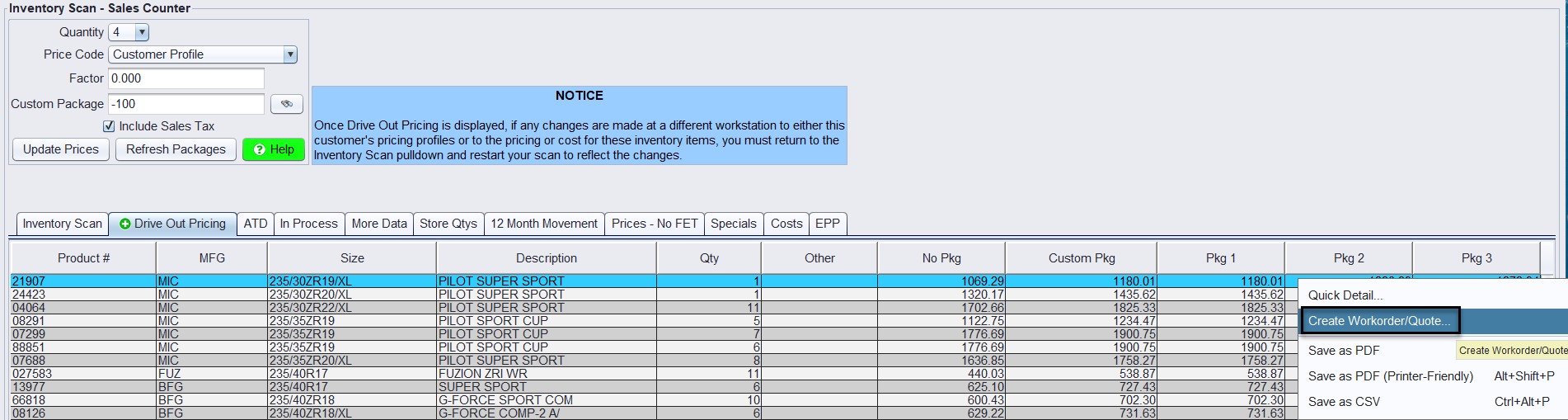
1.) Right-click on the desired column (e.g., Pilot Super Sport in the Better Package column)
2.) Select Create Workorder/Quote.
Optional: Set a Target Price
If a price has been negotiated and you have password permissions
-
-
- Enter the agreed price (e.g., type 1280.89) in the Total With Tax field.
- If left blank, the system uses the default Drive-Out Price for that package.
-
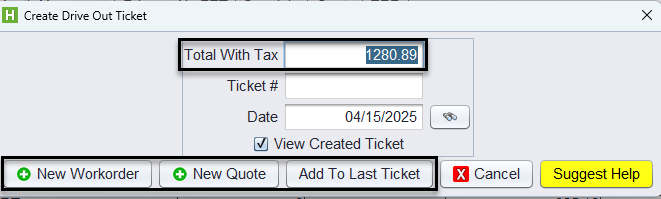
3.) Click New Workorder, New Quote, or Add to Last Ticket.
4.) Proceed to add additional ticket information.
The Drive Out Pricing tab streamlines tire sales by allowing
- Easy comparison of tiered packages.
- Real-time adjustments to quantity and pricing
- Direct ticket creation with optional price negotiation.
For a smooth workflow, always ensure to refresh the packages after making any changes to search criteria.