
HITS provides several pricing tools that can be used to calculate, maintain, and apply selling prices across inventory. The updated pricing options bring matrix pricing directly into Inventory Maintenance, making it easier to review how an item is priced, apply an assigned pricing matrix, and edit the matrix without leaving the inventory item.
Pricing can also be configured at the customer level and through default Retail, Commercial, and Wholesale customer pricing settings.
This document explains how these pricing options work together, when to use each option, and what should be reviewed before applying pricing changes.
Understanding HITS Pricing
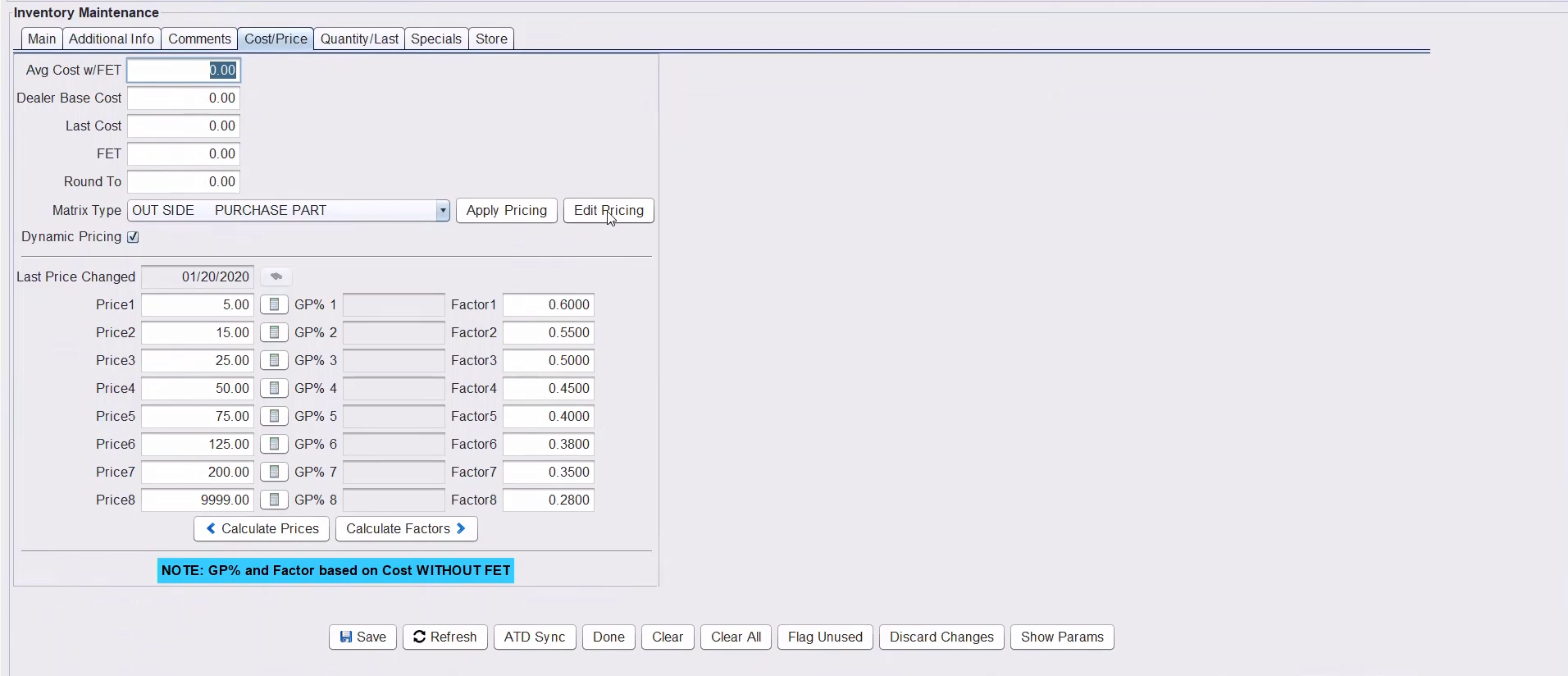
Before making pricing changes, it is important to understand the information displayed on the Cost/Price tab in Inventory Maintenance.
The Cost/Price tab includes the item’s cost information, selling prices, pricing factors, Gross Profit percentages, assigned Matrix Type, and pricing calculation options.
Pricing-related fields include:
- Average Cost w/FET – Displays the item’s average cost including Federal Excise Tax, when applicable.
- Dealer Base Cost – Displays the dealer base cost maintained for the product.
- Last Cost – Displays the most recent cost associated with the item.
- FET – Displays the Federal Excise Tax amount associated with the item, when applicable.
- Round To – Determines how the calculated selling price is rounded.
- Matrix Type – Identifies the pricing matrix assigned to the inventory item.
- Dynamic Pricing – Identifies whether dynamic pricing is being used for the item.
- Price 1-8 – Displays the selling price associated with each HITS Price Code.
- GP% 1-8 – Displays the calculated Gross Profit percentage for each selling price.
- Factor 1-8 – Displays the pricing factor associated with each Price Code.
Important: GP% and Factor are based on cost without FET. Keep this in mind when reviewing pricing for products that include Federal Excise Tax.
When to Use Matrix Pricing
Matrix pricing is useful when selling prices should be calculated consistently based on product cost instead of being entered manually for each item.
A pricing matrix can contain different pricing rules for different cost ranges. This allows a business to maintain a higher margin on lower-cost products while using a different margin on higher-cost products.
Use Case: A business may want inexpensive parts to carry a higher margin because labor and handling costs make up a larger percentage of the sale, while more expensive parts may require a lower margin to remain competitive. A matrix can automatically apply different factors based on the item’s cost range.
Use Case: Tire pricing may follow a standardized set of pricing rules. Assigning a tire pricing matrix allows qualifying inventory items to use those rules without manually maintaining every selling price.
Use Case: If costs change, the assigned matrix can be reapplied so selling prices can be recalculated using the current pricing rules.
Assigning and Applying Matrix Pricing to an Inventory Item
Progressive vs. Simple OP* Matrices
Matrix pricing can be reviewed and applied directly from Inventory Maintenance.
- Open the applicable inventory item in Inventory Maintenance.
- Select the Cost/Price tab.
- Review the item’s current cost, selling prices, GP%, and factors.
- Locate the Matrix Type field.
- Select the pricing matrix that should be used for the product.
- Review the selected Matrix Type before continuing.
- Select Apply Pricing to apply the assigned matrix pricing rules to the item.
- Review the resulting Price, GP%, and Factor values to confirm the calculated pricing is appropriate.
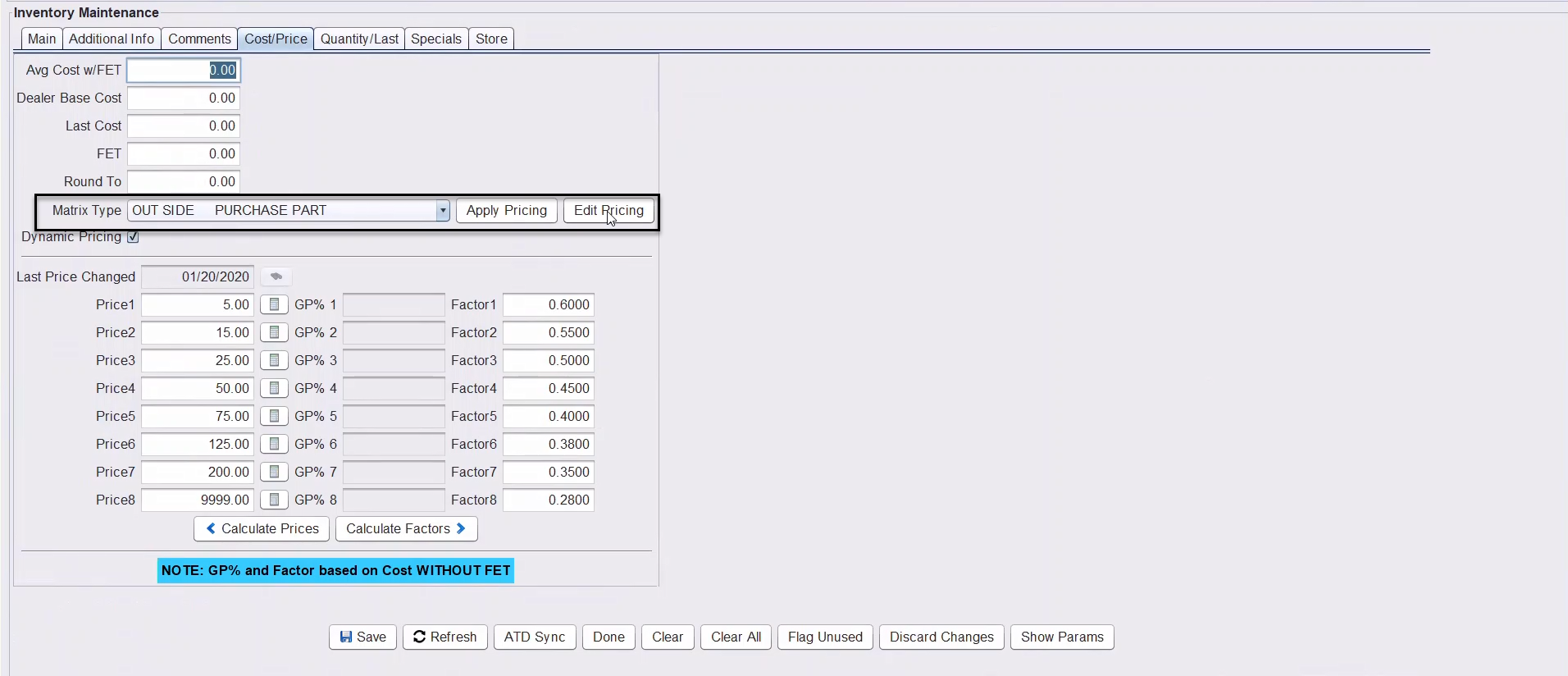
Important: Assigning a Matrix Type identifies which pricing rules apply to the item. Apply Pricing is the action used to apply those rules to the item’s pricing.
Editing a Pricing Matrix from Inventory Maintenance
The Edit Pricing option provides direct access to the pricing matrix assigned to an inventory item. This allows the user to review or maintain the matrix without navigating away from the product being reviewed.
- Open the applicable product in Inventory Maintenance.
- Select the Cost/Price tab.
- Confirm the correct Matrix Type is assigned.
- Select Edit Pricing.
- Review the pricing rules configured for the matrix.
- Make the required changes to the appropriate Price Code and cost range.
- Save the matrix changes when complete.

Use Case: Use Edit Pricing when reviewing an inventory item reveals that the pricing rule itself needs to change. For example, if all items using a particular matrix should have a different factor within a specific cost range, edit the matrix rather than manually changing the selling price on one product.
Understanding Matrix Cost Ranges and Factors
A pricing matrix can contain multiple cost ranges. Each range can have its own pricing factor and related pricing settings.
The matrix can include the following information for each Price Code:
- From Cost – Beginning cost for the range.
- To Cost – Ending cost for the range.
- Factor – Pricing factor applied to items that fall within the cost range.
- Round To – Determines how the calculated selling price is rounded.
- Minimum Profit – Minimum profit requirement configured for the range.
- Maximum Profit – Maximum profit setting configured for the range.
- Cost Basis – Determines which product cost is used when the matrix calculation is performed.
For example, the OPP – OUT SIDE PURCHASE PART matrix demonstrated in training contains different factors based on product cost:
| Cost Range | Factor |
|---|---|
| $0.00 – $5.00 | 0.6000 |
| $5.01 – $15.00 | 0.5500 |
| $15.01 – $25.00 | 0.5000 |
| $25.01 – $50.00 | 0.4500 |
| $50.01 – $75.00 | 0.4000 |
| $75.01 – $125.00 | 0.3800 |
| $125.01 – $200.00 | 0.3500 |
| $200.01 – $9,999.00 | 0.2800 |
This type of configuration allows HITS to use different pricing rules depending on the cost of the product.
Use Case: An outside purchase part costing $20.00 can use a different pricing factor than an outside purchase part costing $500.00, even though both products use the same Matrix Type.
Calculating Prices and Factors
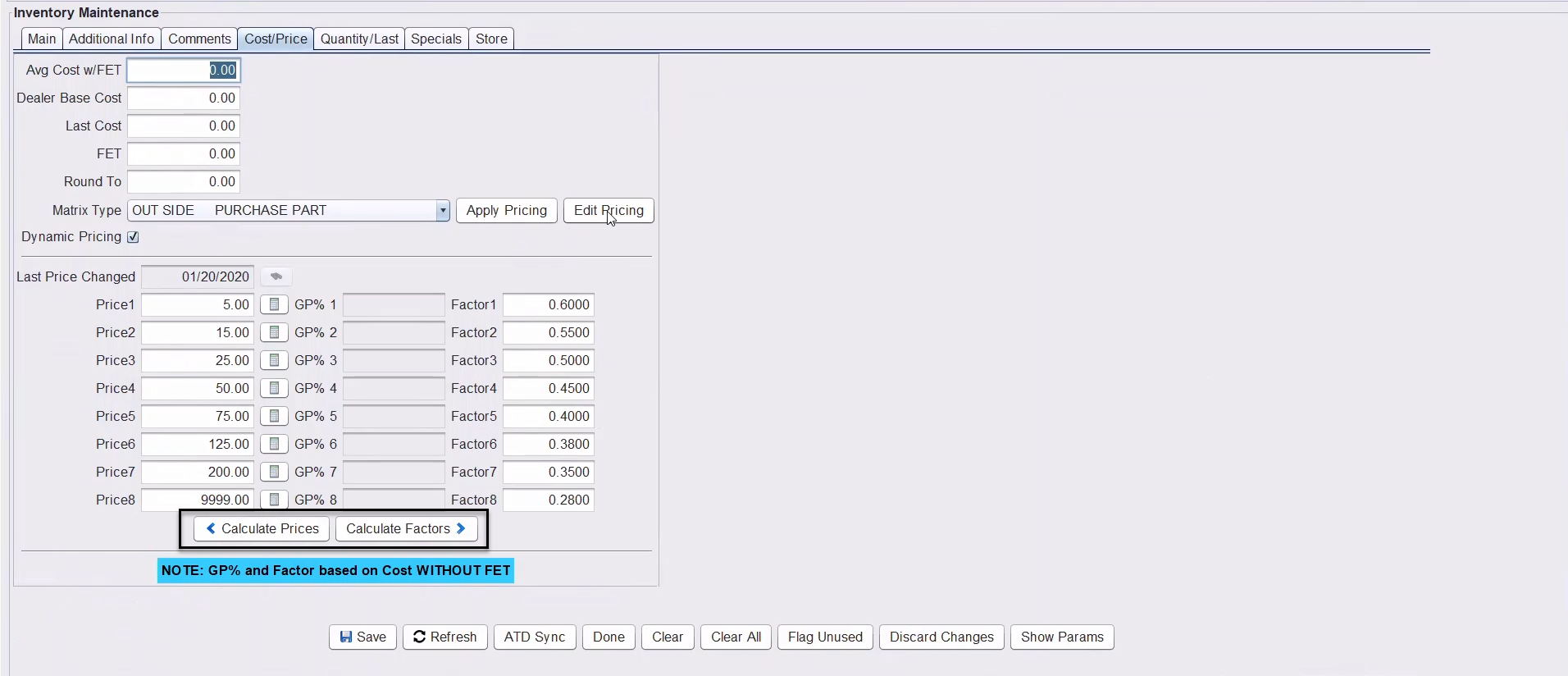
The Cost/Price tab provides two calculation options: Calculate Prices and Calculate Factors.
Calculate Prices is used when the pricing factors are known and HITS should calculate the corresponding selling prices.
Use Case: If the business establishes the pricing factor that should be used for Price 1, Price 2, and Price 3, Calculate Prices can be used to calculate the selling prices from those factors.
Calculate Factors is used when the selling prices are already established and HITS should calculate the corresponding factors.
Use Case: If a manager determines that an item should sell for a specific amount, Calculate Factors can be used to determine the factor associated with that selling price.
The GP% displayed beside each Price level provides an additional way to review the profitability of the calculated selling price.
In the example demonstrated during training, an inventory item with an Average Cost w/FET and Last Cost of $88.01 displayed the following pricing:
| Price Level | Selling Price | GP% | Factor |
|---|---|---|---|
| Price 1 | $118.95 | 26.01 | 0.3500 |
| Price 2 | $129.95 | 32.27 | 0.3200 |
| Price 3 | $125.95 | 30.12 | 0.3000 |
Important: Do not interpret the Factor field as a simple cost multiplier. Review the calculated selling price and GP% in HITS when determining whether the result meets the intended pricing strategy.
Managing Pricing Matrices
Pricing matrices can also be managed from the main HITS pricing area.
- Navigate to Views>Administration & Utilities>Pricing.
- Select Matrix Pricing Add/Edit/Delete.
- Select the applicable matrix or pricing function.
This screen includes options for managing matrix pricing, including:
- Matrix(s)
- Price by Matrix
- Price by Filter
- Add Matrix
- Edit Matrix
- Delete Matrix(s)
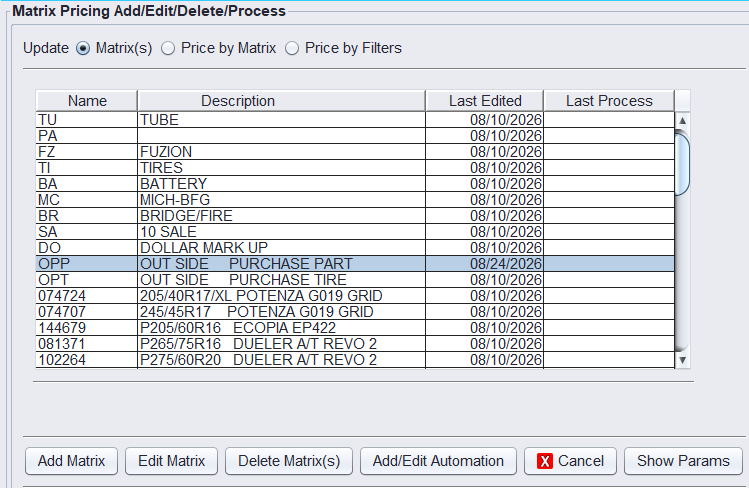
Use Case: Use the centralized Matrix Pricing screen when the goal is to maintain the pricing matrix itself or work with pricing across a broader group of inventory. Use Edit Pricing from Inventory Maintenance when reviewing a specific product and its assigned matrix.
Setting Customer-Specific Pricing
Pricing can also be configured for an individual customer from Customer View & Edit.
The Pricing section allows pricing to be defined generally for the customer and separately for Tires, Parts, and Services.
Available pricing sections include:
- General
- Tire
- Part
- Service
Price Code and Factor values can be maintained within these sections. EPP and Template settings are also available where applicable.
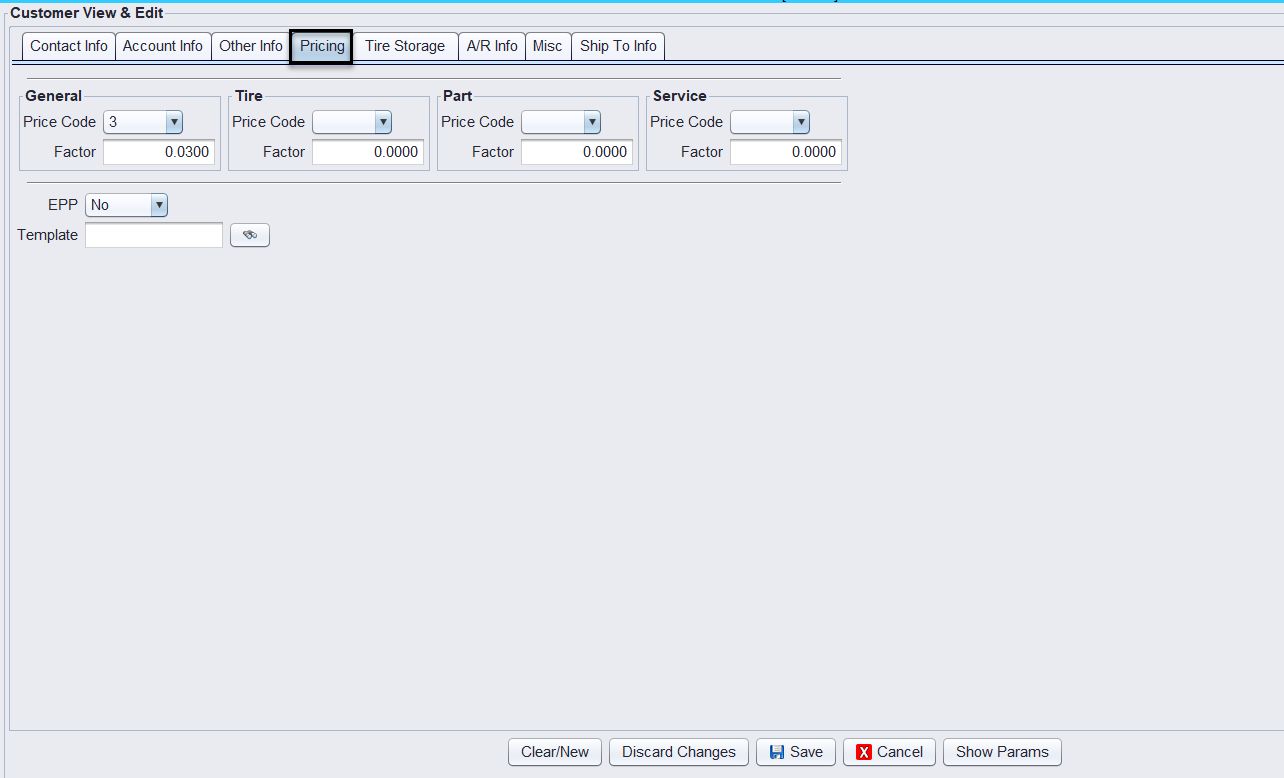
Use Case: A customer may normally use Price Code 3 for purchases but require different pricing for tires. The General pricing can remain in place while separate Tire pricing is configured for that customer.
Use Case: A commercial account may require special parts pricing without changing the pricing used for services. The Part pricing section can be configured independently.
Setting Default Pricing by Customer Type
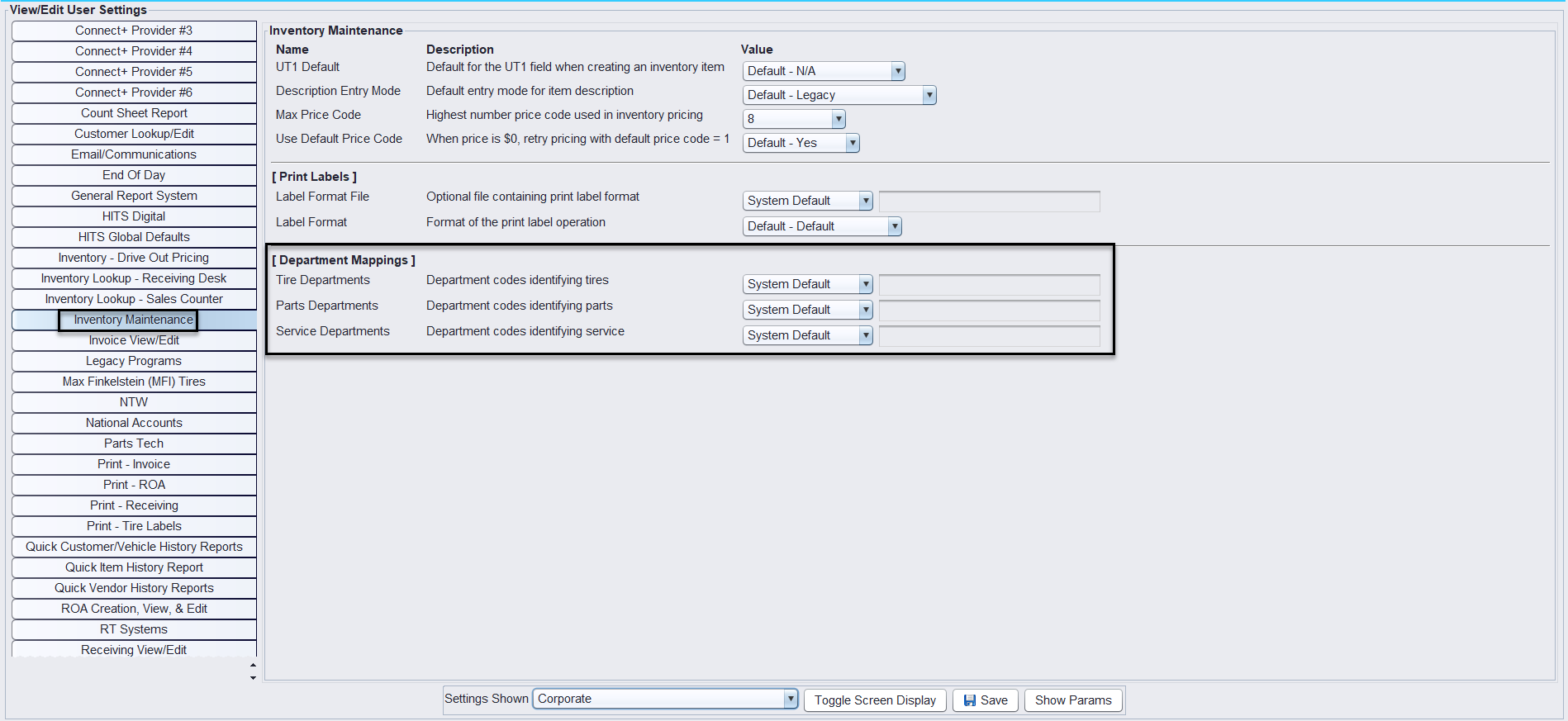
Default customer pricing can be configured from User Settings > Customer Lookup/Edit.
Separate default pricing sections are available for:
- Retail Customer Pricing
- Commercial Customer Pricing
- Wholesale Customer Pricing
Available settings include Pricing Mode, Price Code, Factor, EPP, and Template options.
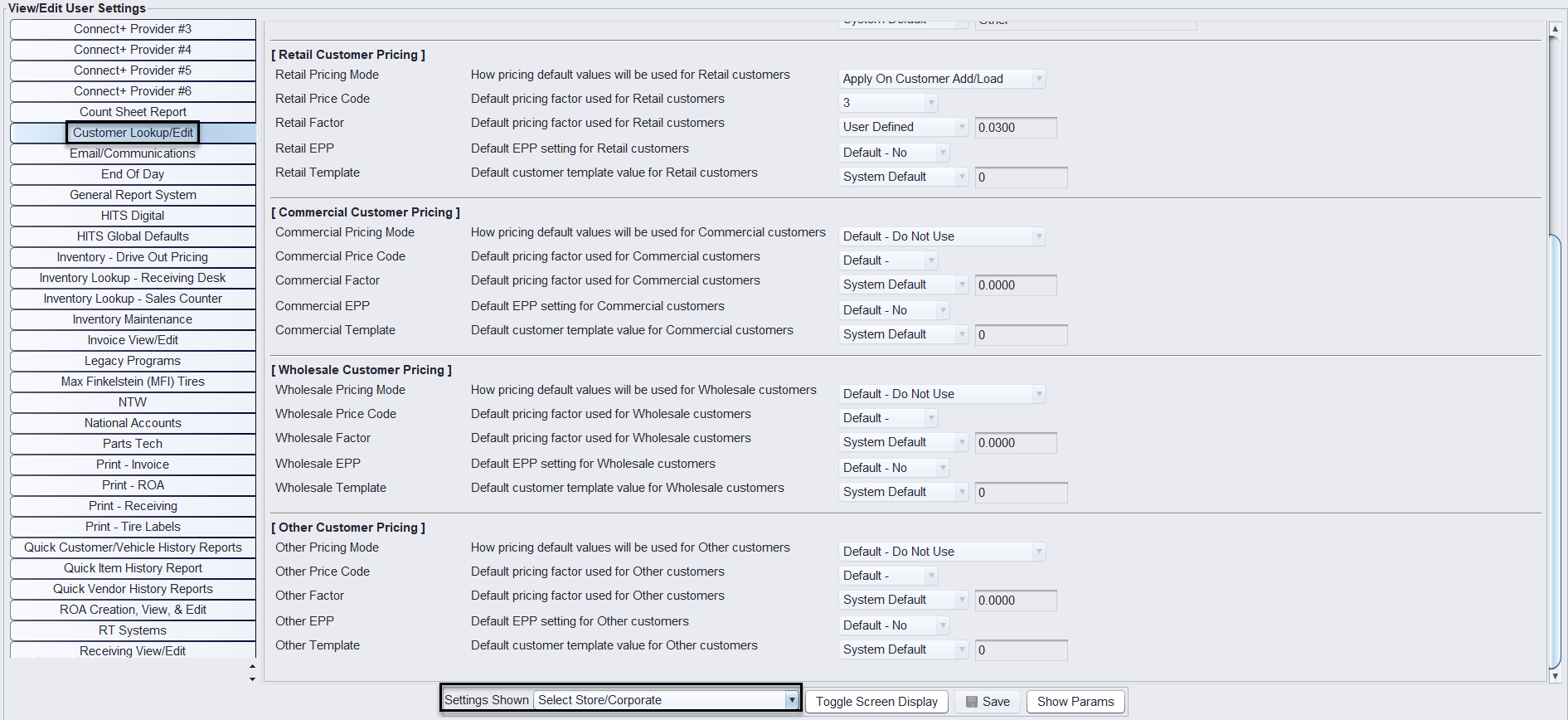
Use Case: If Retail customers normally use Price Code 3, the Retail Customer Pricing settings can be configured so the standard pricing configuration is available for that customer type instead of relying on users to configure the same pricing manually for each customer.
Use Case: Commercial and Wholesale customers can have different standard pricing requirements. Maintaining separate defaults allows each customer type to follow the appropriate pricing configuration.
Pricing Use Cases
| Goal | Recommended Pricing Option |
|---|---|
| Automatically price inventory based on product cost | Assign and apply a Matrix Type |
| Use different pricing rules for different product cost ranges | Configure cost ranges within a pricing matrix |
| Change the pricing rules used by multiple items | Edit the pricing matrix |
| Recalculate an item’s selling prices after a pricing or cost change | Review the assigned Matrix Type and use Apply Pricing or Calculate Prices as appropriate |
| Determine the factors associated with existing selling prices | Use Calculate Factors |
| Review whether a calculated selling price provides the desired margin | Review the GP% beside the applicable Price level |
| Give one customer different pricing from the standard customer pricing | Configure customer-specific pricing in Customer View & Edit |
| Give a customer different pricing for Tires, Parts, or Services | Configure the applicable Tire, Part, or Service pricing section |
| Establish standard pricing settings for Retail, Commercial, or Wholesale customers | Configure the applicable customer pricing defaults in User Settings |
Important Pricing Considerations
- Confirm the correct inventory item and Matrix Type before applying pricing.
- Review the matrix Cost Basis to understand which cost is being used for the pricing calculation.
- GP% and Factor calculations are based on cost without FET.
- Review the resulting selling prices and GP% after making pricing changes.
- Editing a pricing matrix changes the pricing rules associated with that matrix. Consider other products using the same matrix before changing the matrix configuration.
- Assigning a Matrix Type and applying pricing are separate actions.
- Use customer-specific pricing when an individual customer requires pricing that differs from the standard configuration.
- Use separate Tire, Part, or Service pricing when only one product category should receive different customer pricing.
- Use Retail, Commercial, and Wholesale defaults to establish standard customer pricing behavior by customer type.