
HITS supports multiple stores days open at once.
This provides flexibility for management and bookkeepers, as transactions do not have to be finalized on the actual day they are made. That said, once the store date has been finalized through the End-of-Day process, no further edits or new transactions can be made on that date.
How to set the store date
The store date is determined each day based on your Store Date Creation rules. Most systems are configured to automatically create the store date when the first user logs in for the day. Days when the store is closed are typically set not to create a store date. This can be found under Views > Admin & Utilities > Store > View/Edit Default Settings > Store Date Creation Rules.

Some businesses prefer to manually set the next business day in advance (e.g., starting the next day at 3 PM). This can be done via:
Views > Admin & Utilities > Store > Store Date
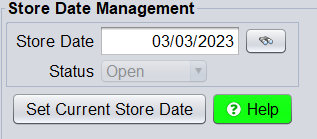
Note: If you have multiple stores, the date must be set individually in each store.
If the store day is closed, but a ticket needs to be created
If the store date has already been closed (for example, End Of Day was run at 6:30pm), and you need to create a ticket or purchase order after that time, the system will not allow it using the closed date.
To proceed, simply change the Date field to the next day. This will automatically open the next store date and allow the transaction to go through.
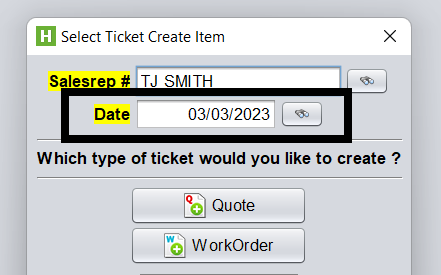
This behavior is intentional. HITS doesn’t assume when your next day begins, since many stores manually control this. If a store date hasn’t been created yet, entering it on the ticket or PO will open it.
Date on ticket
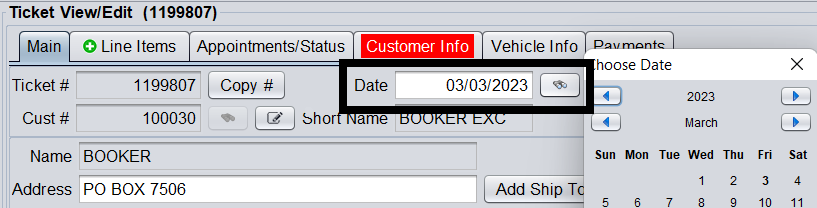
Tickets will default to the store date at the time of creation. However, as long as the desired store date is still open, you can edit the Date field on the ticket.
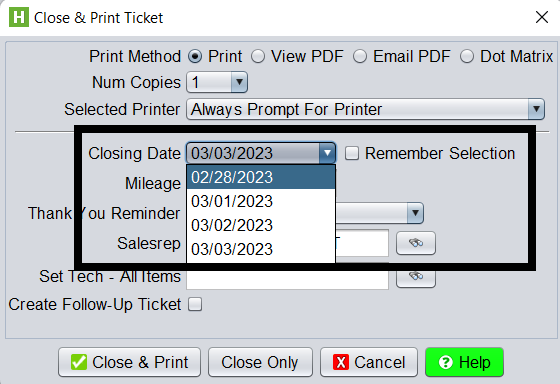
When closing a ticket and multiple store dates are still open, you can choose the date to close under. The pop-up will allow you to select a closing date, and the “Remember Selection” checkbox will apply that date to all subsequent tickets you’re closing.
To see old days that are still open in your store
To check which store days are still open, go to the End Of Day screen. This shows a calendar of open and closed dates.
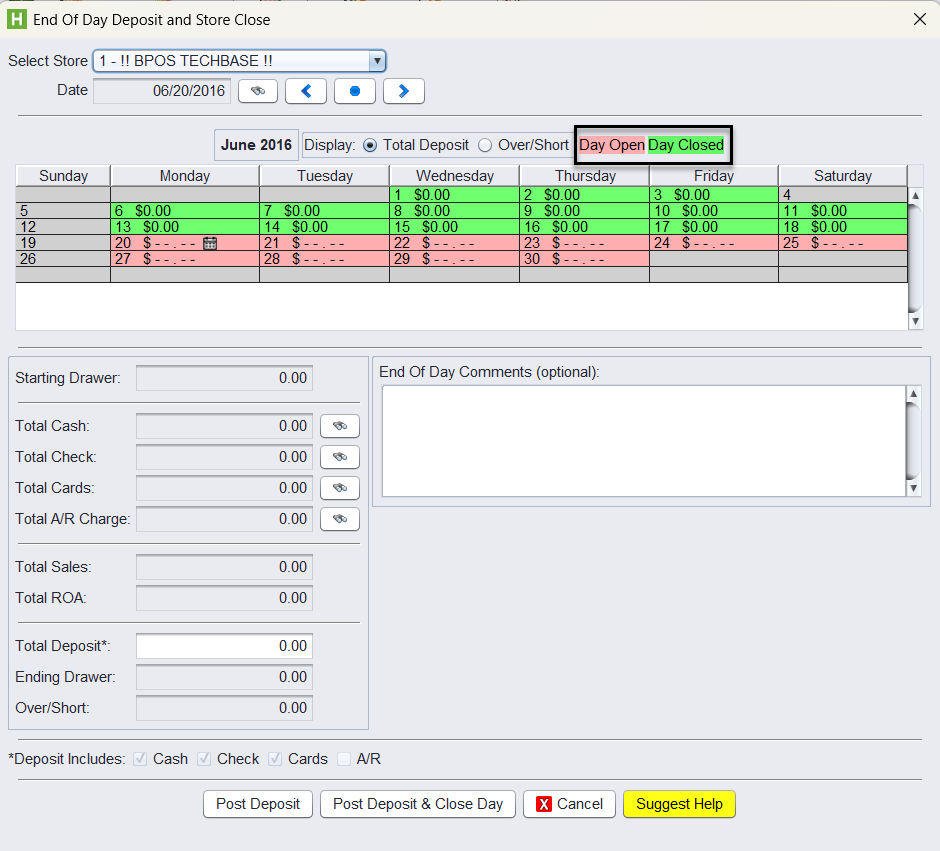
If you’re managing multiple stores, you can:
-
- Run the Payment Recap report under Views > Reports > Recaps & Summaries, or
- Go to Views > Admin & Utilities > Store > Oldest Open Store Dates
Future days open in your store
When you create a Quote or Appointment for a future date, HITS will automatically open that store date — even if it’s next week or next month. However, tickets cannot be closed more than 5 days in the future, even if the store date is open.
Bulk Closing Tickets
When using the Bulk Processing page to close tickets (either to Batch or Finalize), the ticket’s existing date is used — not a new one. See Batch Reconciliation & Batch Close
If tickets need to be closed on a date other than the date on the ticket, use the push tickets function (View > Sales Counter > Tickets > Push Workorders & Batch Closed Tickets) to reassign the dates on a list of tickets.