
How HITS Decides the Final Price in v50 and Later
For HITS version 50 and later
Using v49 or earlier? See Inventory Pricing Hierarchy Rules for earlier versions. The earlier guide uses a different numbering order. Use the hierarchy for your installed version.
HITS combines the product’s inventory pricing with the customer’s assigned price code and factor, then applies qualifying pricing rules to determine the final selling price. Every sale requires both a product and a customer, including sales made through a cash account.
Use the hierarchy to understand which pricing rules take priority. In this guide, 1 is the highest priority and 7 is the foundation. Start with inventory and customer pricing, then review the rules that can change the result. The sections below explain each level from 7 to 1.
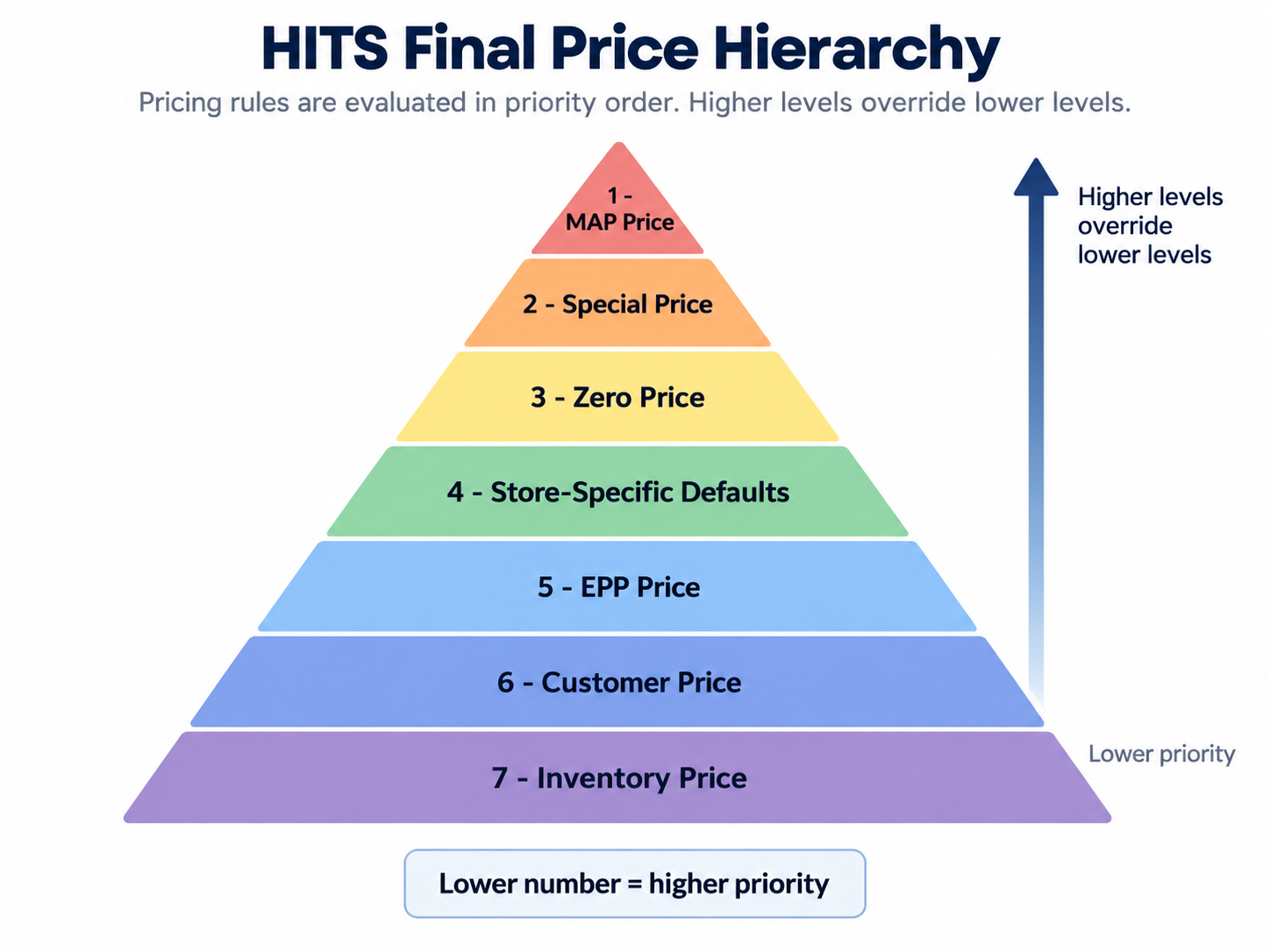
Read from the foundation upward: 7. Inventory Price → 6. Customer Price → 5. EPP Price → 4. Store-Specific Defaults → 3. Zero Price → 2. Special Price → 1. MAP Price.
7 – Inventory hierarchy pricing
Inventory pricing is the foundation of the hierarchy. In this context, inventory includes all product records, including stocking items, nonstock items, parts, and services.
HITS supports up to 24 selling price codes. The standard display remains four unless the configured count is increased. Price code 0 represents Average Cost and is separate from the selling price codes. Users must log out and log back in after changing the displayed price-code count.
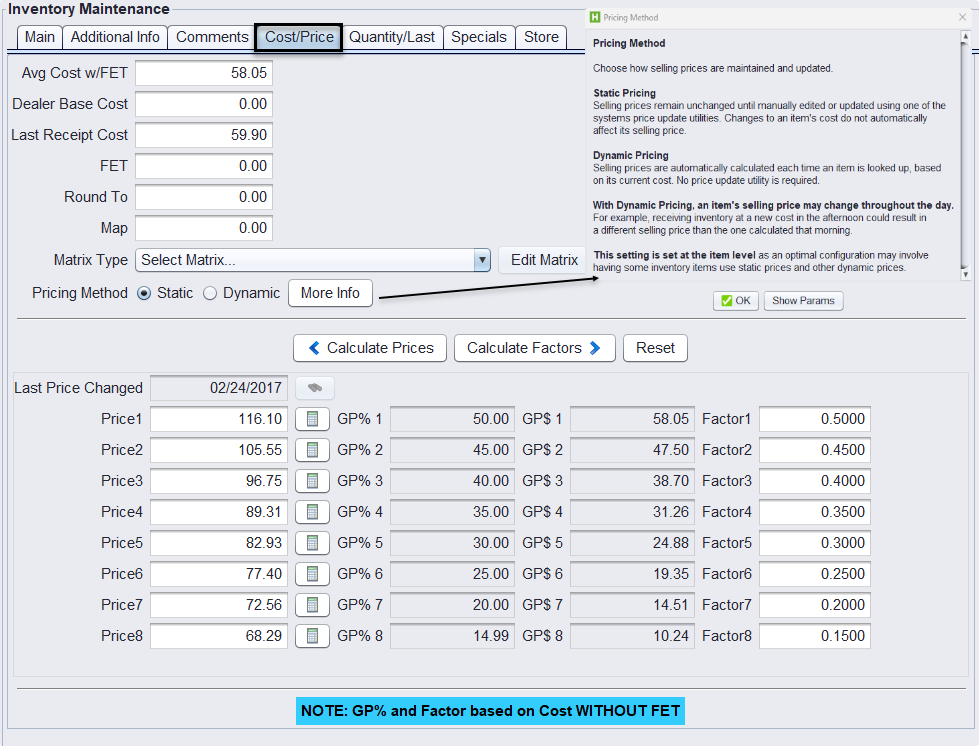
Static and Dynamic Pricing
- Static pricing uses the selling price saved in the inventory record. It changes when that stored value is updated.
- Dynamic pricing calculates the selling price each time you look up the item, using its current cost and pricing settings. If the cost changes, the selling price may change too.
Stored prices can be updated manually, through supported export/import workflows, through the Target Percentage/Price Change utility, or through Matrix Pricing processes and configured automations. Matrix Pricing is the current terminology for functionality previously described as Table Pricing.
How Dynamic Pricing Chooses a Calculation
For an item set to dynamic pricing, an assigned matrix takes precedence over the item’s pricing factors. When no matrix is assigned, HITS calculates dynamic pricing from the item’s factors using Average Cost. Remove the matrix assignment if the intended calculation should use the factors instead.
A matrix can use a different cost or price basis for each selling price code and include minimum and maximum profit controls. Depending on the configuration, the basis may be Average Cost, Last Cost, Dealer Base Price, or another selling price code. Check the basis before interpreting the factor.
A factor applied to a cost basis can represent a gross-profit target; a factor applied to a price basis can represent a discount. Do not assume that the same factor produces the same calculation across different bases.
Static Updates or Dynamic Calculation
Use static pricing when the business wants stored selling prices to change only at controlled times. An item cost change does not automatically change a static selling price; a manual edit or pricing update process must update the saved amount.
Use dynamic pricing when selling prices should be calculated at lookup from current costs and configured rules. No recurring price update is required for that dynamic calculation.
Example: Use a scheduled update when selling prices should remain fixed during the day and change overnight. Use dynamic pricing when prices should be calculated from current costs and rules when the item is looked up.
Matrix Pricing and Existing Assignments
In v50 and later, Matrix Pricing replaces the older Table Pricing terminology and brings legacy table and item-level OPP/OPT pricing into matrix records.
Review each migrated matrix and its product assignments before changing or deleting it. OPP/OPT pricing can now use a different matrix for each price code rather than sharing a single matrix across every code.
A matrix can be used with static or dynamic inventory pricing. Assigning a matrix alone does not mean that a regular inventory item is dynamically priced. Verify both the matrix assignment and the item’s static/dynamic setting.
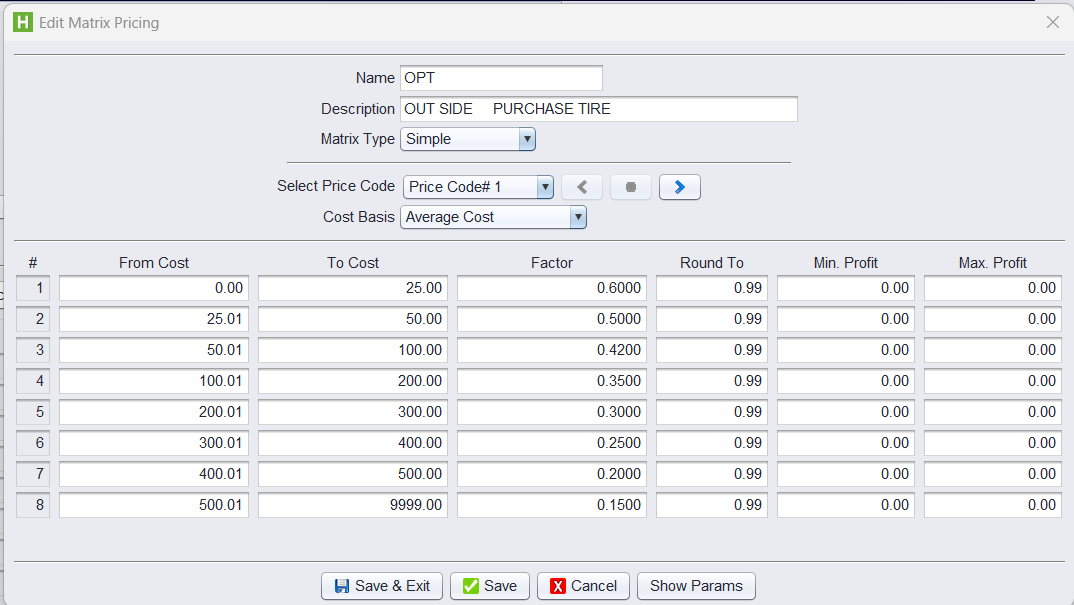
A matrix uses the selected Cost Basis and the factor for the matching dollar range to calculate the selling price. The factor’s meaning changes depending on the basis.
Example 1: Average Cost
An item with an Average Cost of $150 falls in the $100.01–$200.00 range. The 0.3500 factor sets a 35% gross-profit target:
$150 ÷ (1 − 0.35) = $230.77 before rounding
Example 2: Dealer Base As PRICE
An item with a Dealer Base Price of $150 falls in the same range. Here, the 0.3500 factor applies a 35% discount:
$150 × (1 − 0.35) = $97.50 before rounding
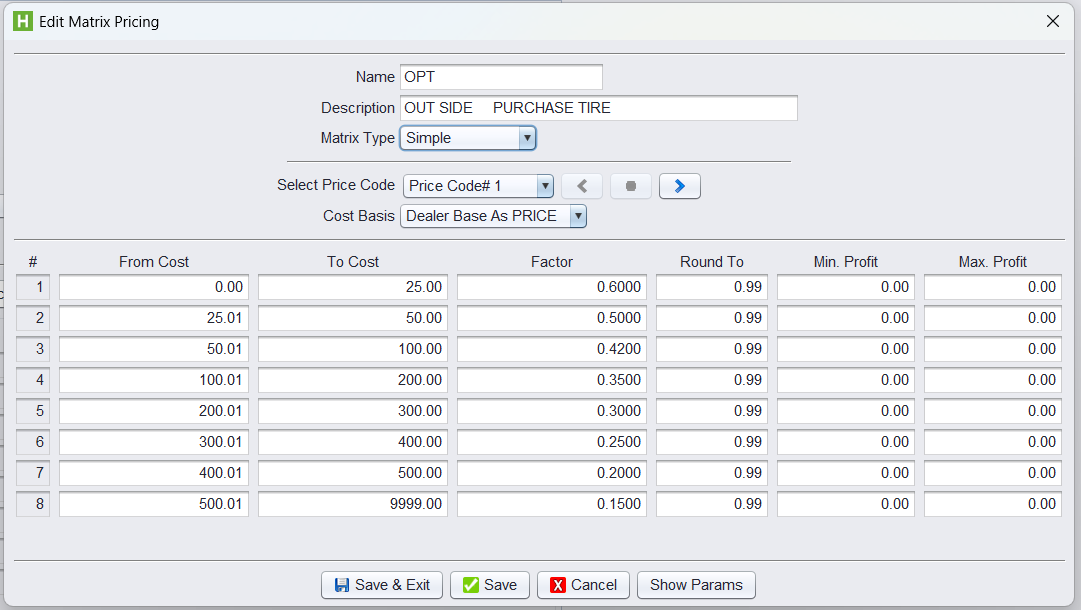
Both examples use the same factor, but the selected basis produces a different selling price. The Round To setting and any minimum or maximum profit controls can further adjust the result.
Pricing for New Products
When adding products, check the assigned matrix and the Static/Dynamic setting. A matrix assignment alone does not establish that the product uses dynamic pricing.
6 – Customer hierarchy price
The customer’s assigned price code and optional factor determine the inventory pricing to use. The customer record can also provide category-specific assignments for tires, parts, and services, with the general assignment serving as the fallback.
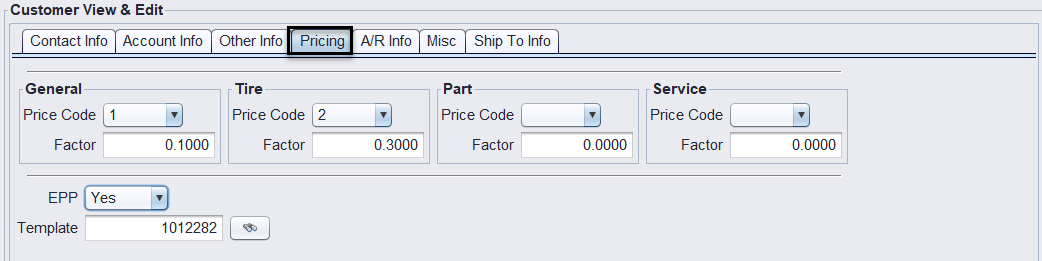
- Price code 0 uses Average Cost as the pricing basis. A GP factor of 0.15 represents a 15 percent gross-profit target.
- For selling price codes, a discount factor of 0.15 represents 15 percent off the applicable price.
- Check product-category assignments as well as the general price code and factor.
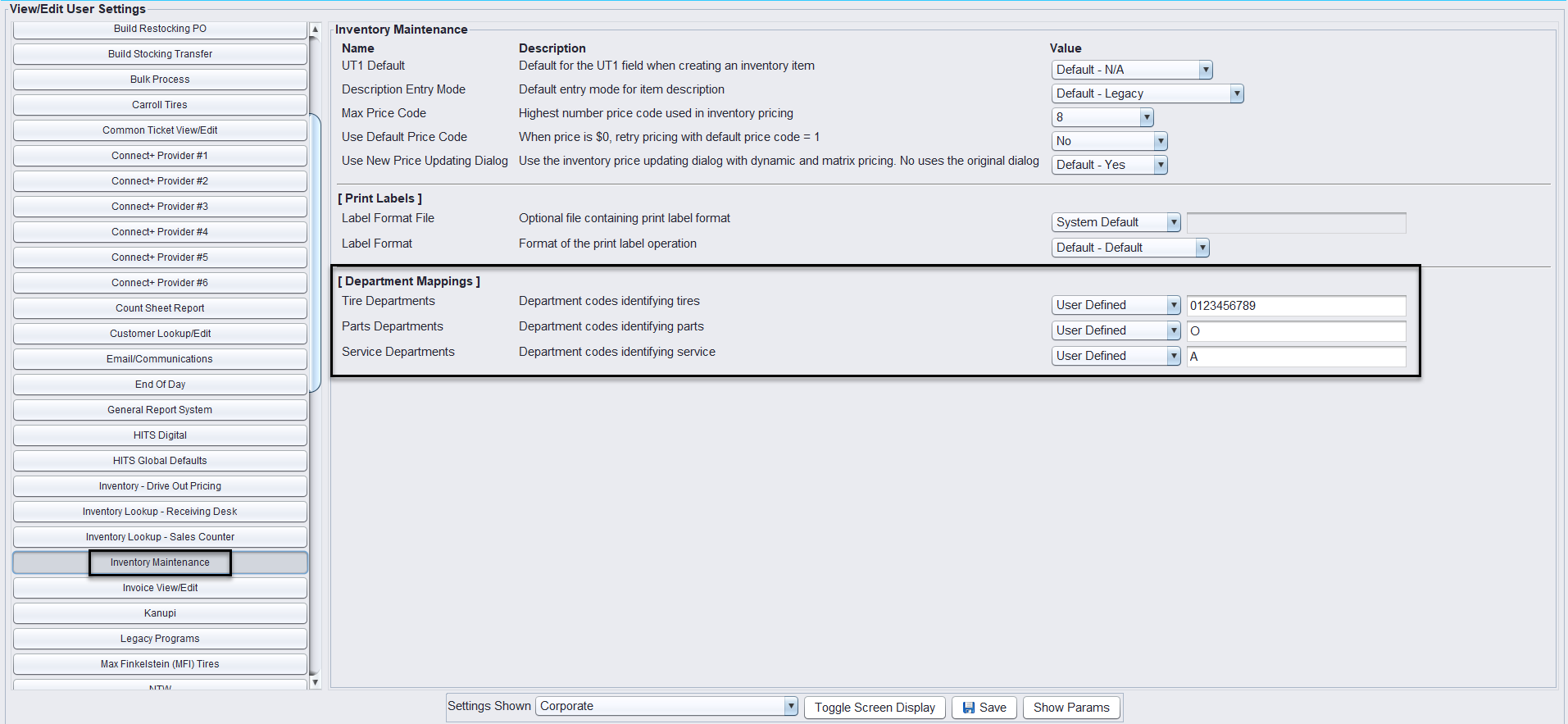
- Verify department mappings so the product uses the intended category.
Example: A customer can use price code 3 for tires and price code 1 for parts and services. An applicable EPP rule can still replace that base pricing calculation.
If EPP is removed, the customer’s applicable code and factor provide the base customer calculation.
Category assignments also allow a discount to apply to services without applying the same discount to tires and parts. Confirm that the intended service departments map to Services and that the category-specific customer code and factor are configured. Example: 10 percent off an $85 service produces $76.50 before other qualifying rules are considered.
5 – EPP hierarchy price
Extended Pricing Profile (EPP) provides pricing exceptions through customer-specific rules or a template customer account assigned to the customer. Both sources are grouped under the EPP Price level; review both when checking a price.
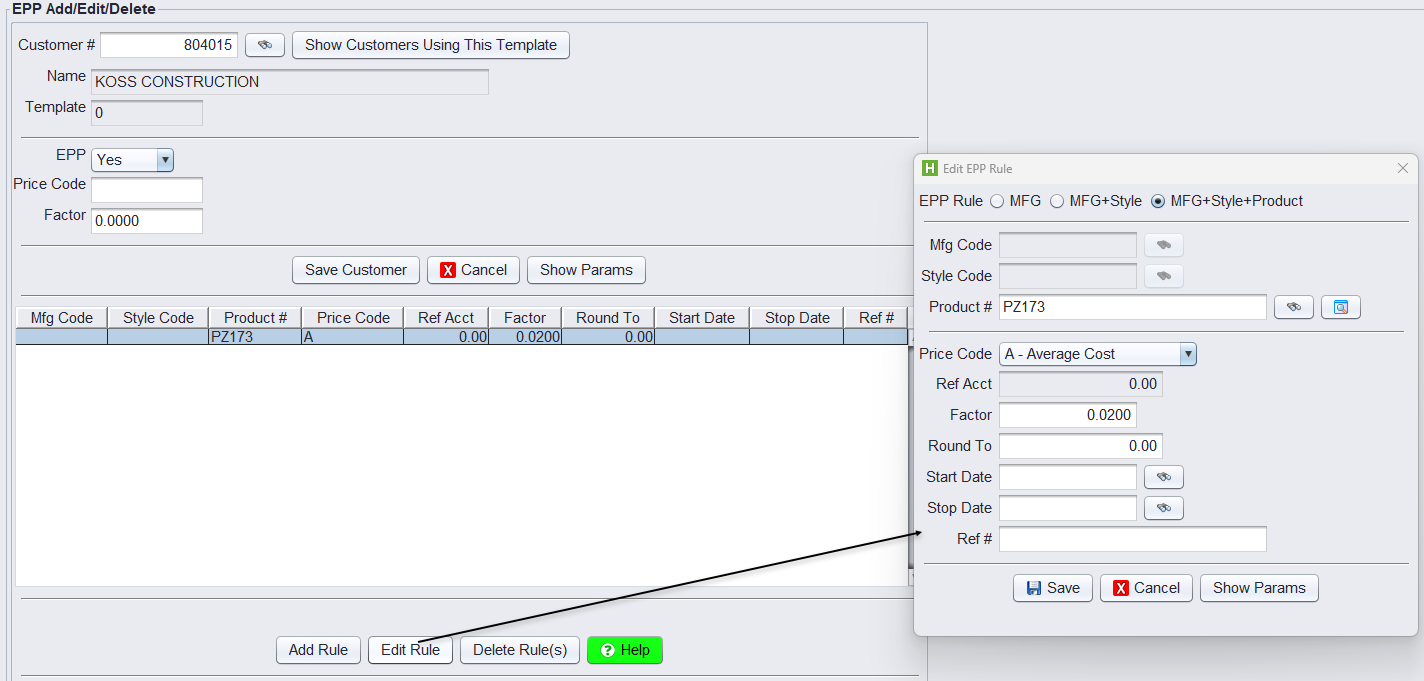
- Customer-specific rules may apply by manufacturer, style, or individual product.
- Template accounts provide shared rules for multiple customers.
- EPP can support contract pricing, imported contract price files, and negotiated customer exceptions.
Example: Customer-specific EPP pricing
KOSS CONSTRUCTION has an EPP rule for product PZ173 using A – Average Cost with a 0.0200 factor.
When this customer purchases PZ173, the qualifying EPP rule takes priority over the standard inventory or matrix price. HITS uses Average Cost and the EPP factor to calculate the price, even if the customer or store normally uses another price code.
4 – Store Specific Defaults hierarchy pricing
Store-specific defaults can assign a price code, factor, or EPP template by customer type. Depending on the configured application option, defaults apply when a customer is added or when a customer is added or loaded.
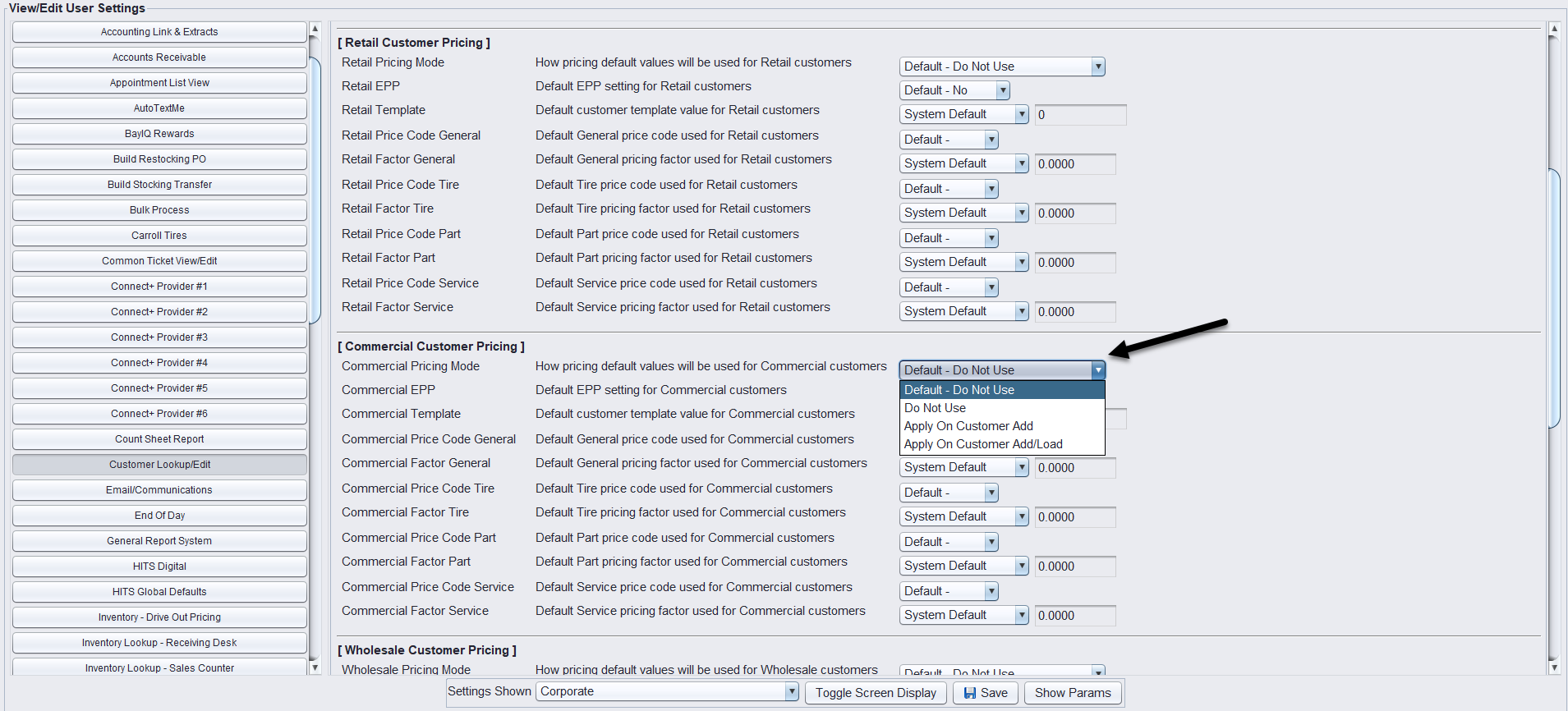
These defaults write the configured assignments to the customer record. They do not represent an additional discount applied on top of every other rule. A configured store EPP template can replace the customer’s existing template assignment.
- Review Retail, Commercial, Wholesale, and Other customer settings separately.
- Use corporate defaults for shared settings and store overrides when a location requires different pricing.
- Check whether defaults apply on customer add only or on add/load before changing settings.
- Protect negotiated commercial and wholesale pricing from unintended replacement.
Example: Store 1 assigns retail customers to price code 1, while Store 3 assigns them to price code 3. When Pricing Mode is set to Apply On Customer Add/Load, the store’s pricing defaults apply when a customer is added or loaded. With Apply On Customer Add, those defaults apply only when adding a new customer.
3 – Zero hierarchy price
Zero-price handling determines what HITS does when the applicable price calculation returns zero. This is particularly important when additional price codes are enabled before pricing has been established for them.
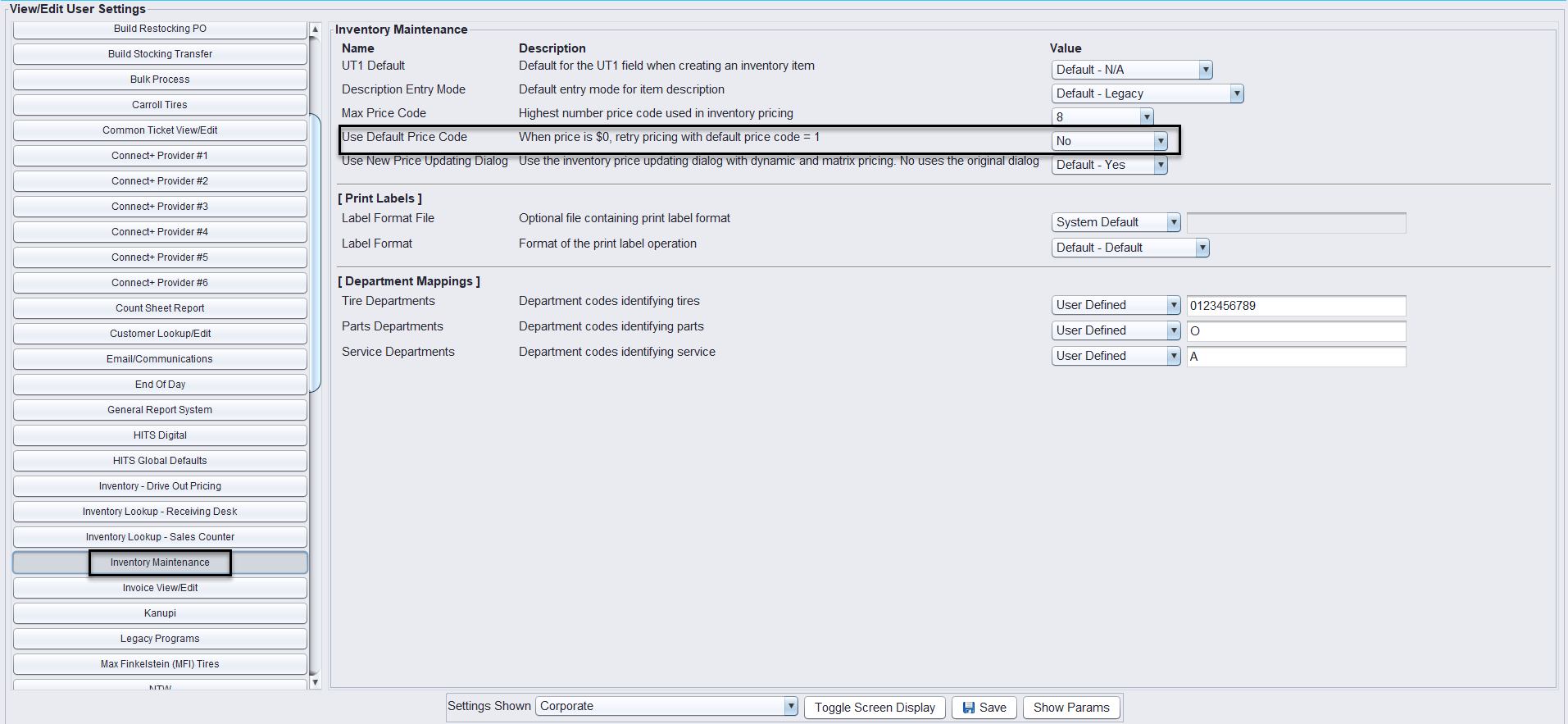
- Use Default Price Code When Price Is Zero = Yes: HITS retries pricing using price code 1.
- Use Default Price Code When Price Is Zero = No: The price remains zero so missing pricing can be identified.
If price code 1 is also zero, the fallback does not create a nonzero price.
Example: A customer uses price code 3, but the item’s price for that code is $0.00. Its price code 1 price is $100.00.
- Setting = Yes: HITS uses price code 1, returning $100.00.
- Setting = No: The price stays at $0.00, allowing you to identify and correct the missing price.
If price code 1 is also $0.00, the price remains zero with either setting.
2 – Special hierarchy price
A qualifying special applies only when its price is lower than the customer’s calculated price. A special can take precedence over EPP pricing.
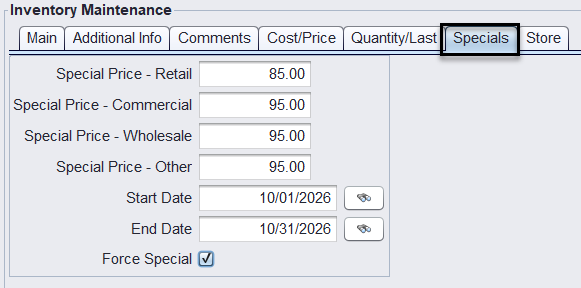
- Review the applicable customer type: Retail, Commercial, Wholesale, or Other.
- Verify the special’s effective start and end dates.
- Compare the special amount with the calculated customer price; an active special alone does not establish that it applies.
Example: The customer’s calculated price is $100. If an active special for their customer type offers the item at $90, HITS uses the $90 special price. If the special is $101, HITS keeps the $100 calculated price because it is lower.
1 – MAP hierarchy price
Minimum Advertised Price (MAP) is the highest-priority rule in the current HITS hierarchy. When a MAP value is configured for an item, HITS prevents the final calculated selling price from falling below that value. MAP is maintained at the item level rather than by customer or store.
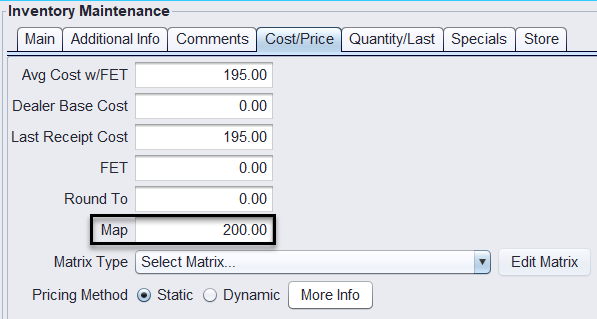
Example: The customer’s calculated price is $195 and the item’s MAP is $200. The final selling price is $200, even if an EPP rule or special produced the lower amount.
When a price looks incorrect
- Confirm the product, customer, store, and product category used for the sale.
- Check inventory pricing, the Static/Dynamic setting, and any assigned matrix and calculation basis.
- Review the customer’s general and category-specific price codes and factors, customer-specific EPP rules, and EPP template.
- Check store defaults, including whether they apply when a customer is added or loaded.
- If the result is zero, review the zero-price fallback setting and price code 1.
- Check the special’s customer type, dates, and amount, then review the item’s MAP.
Related pricing guides
Use these guides for setup and update instructions. This hierarchy explains priority; the linked guides explain how to maintain the pricing settings.
Extended Pricing Profile and Customer Pricing — Set up customer-specific rules and maintain EPP contract pricing.
HITS Pricing Updates and Matrix Pricing — Assign and edit matrices, calculate prices and factors, and review customer defaults.
Pricing Export and Import for v50 and later — Update inventory pricing through a spreadsheet. This is separate from EPP Export/Import.
Target Percentage Price Change Utility — Update factors or recalculate stored selling prices.
Automating Price Updates — Schedule matrix or target percentage updates.
Special Pricing and Force Specials — Configure specials and review the Force Specials option.
Store Specific Pricing for a Single Product — Configure product pricing through an EPP template and store defaults.
Update Inventory Pricing — Review individual item price updates from Inventory Lookup or a receipt.
Progressive and Simple Matrices — Compare the two matrix calculation methods.
Markup Calculations — Compare gross profit and straight markup calculations.